 DRM-X 6.0
WordPress plugin installation and configuration
Install the shared WordPress plugin, map a lesson to Content ID, and keep your LMS enrollment and membership rules.
Your setup at a glance#
Current download: 1.3.0-preview.7 · one shared plugin for LearnDash, LearnPress, Tutor LMS, Sensei and MasterStudy.
You normally configure the plugin in your administration screens. Keep your existing users, purchases and enrollments; no separate access-grant records are needed.
- 1. Connect once
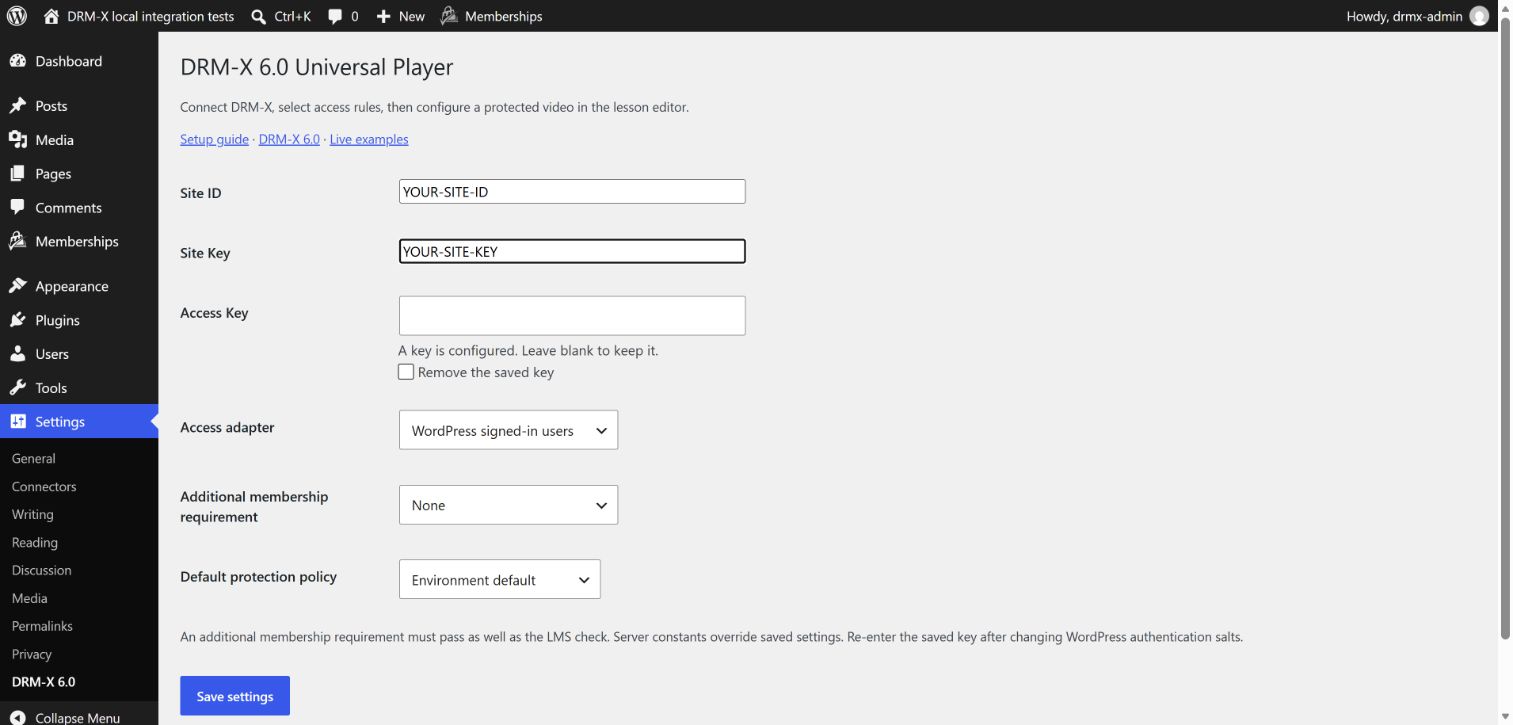
Settings → DRM-X 6.0Enter server credentials and select your LMS adapter.
- 2. Map the lesson
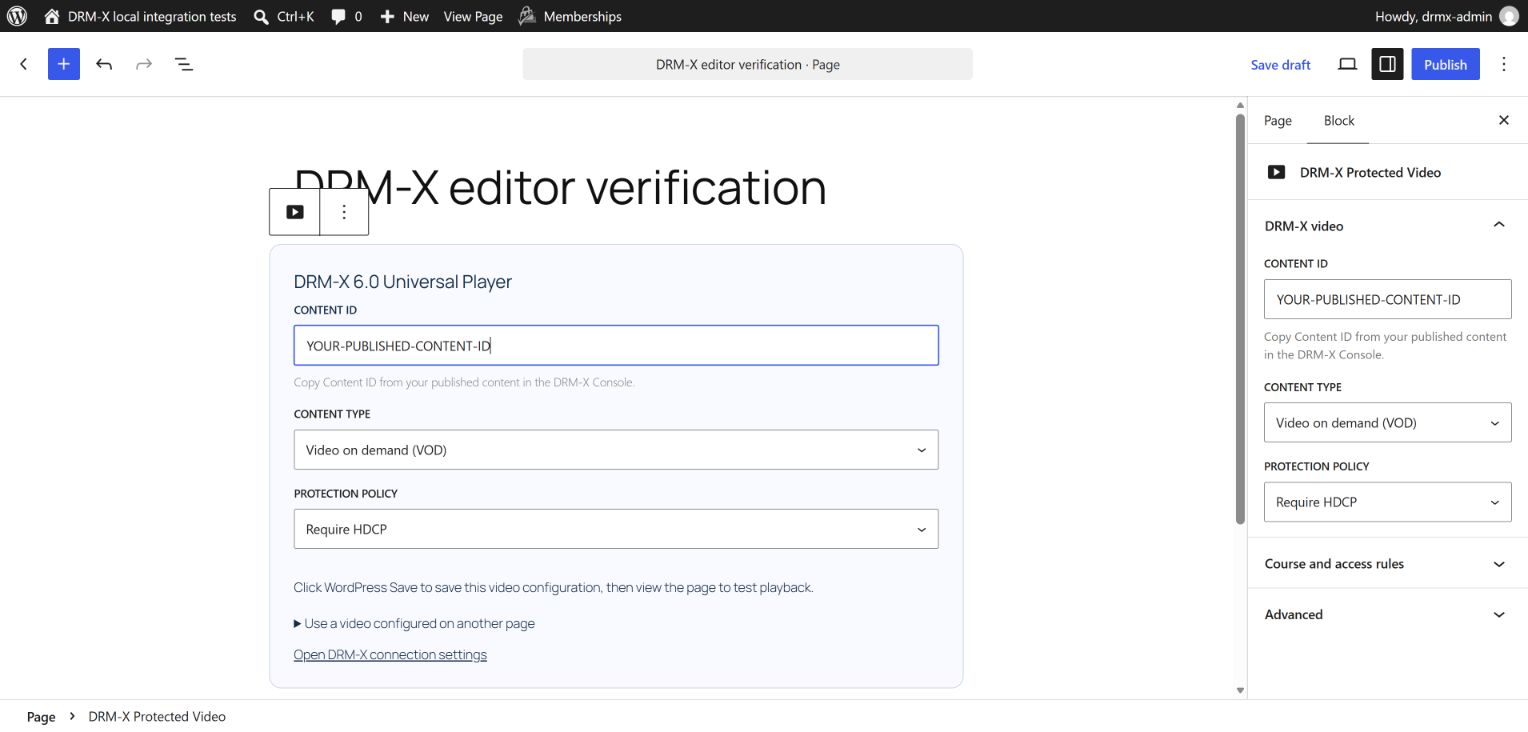
DRM-X Protected VideoPaste the published Content ID and choose VOD/Live and policy.
- 3. Show the player
Lesson content
Insert the DRM-X block or shortcode; retain your course enrollment rules.
Install and configure#
Download the plugin ZIP below. In WordPress, open Plugins → Add Plugin → Upload Plugin, install the ZIP and activate DRM-X 6.0 Universal Player. Then open Settings → DRM-X 6.0. Start with a staging site.
Enter Site ID, Site Key and Access Key from a server integration with license-tokens:create permission. These values stay on your server. The saved Access Key is encrypted using your WordPress authentication salt; after salt rotation, enter the key again.
Choose the LMS access adapter and the default license policy. Selecting WordPress signed-in users intentionally allows every signed-in account to view a mapped published post; use an LMS or membership adapter for paid courses.
Click Save settings after entering the connection values. The screenshot uses placeholders: replace them with your own values. When updating an existing connection, a blank Access Key field keeps the saved key.
Map a lesson and embed the player#
Choose the instructions for your lesson editor below. Gutenberg uses a DRM-X block; LearnPress classic lessons use a panel below the content; Tutor LMS uses fields inside its lesson popup. An administrator must configure the protected video.
- Copy Content ID from the published video in the DRM-X Console and paste it into the Content ID field. Do not paste Site ID, a video URL or a WordPress post ID.
- Choose Video on demand (VOD) for a packaged video, or Live stream for live content. The selection must match the published content.
- Choose Protection policy, or keep Use course or site default to inherit the policy. Require HDCP in this example is a policy choice, not a requirement for every video.
- Click Save for an existing published page, or Save draft while preparing a new page. Publish when the page is ready for learners. Reopen the editor to confirm that Content ID and policy were saved.
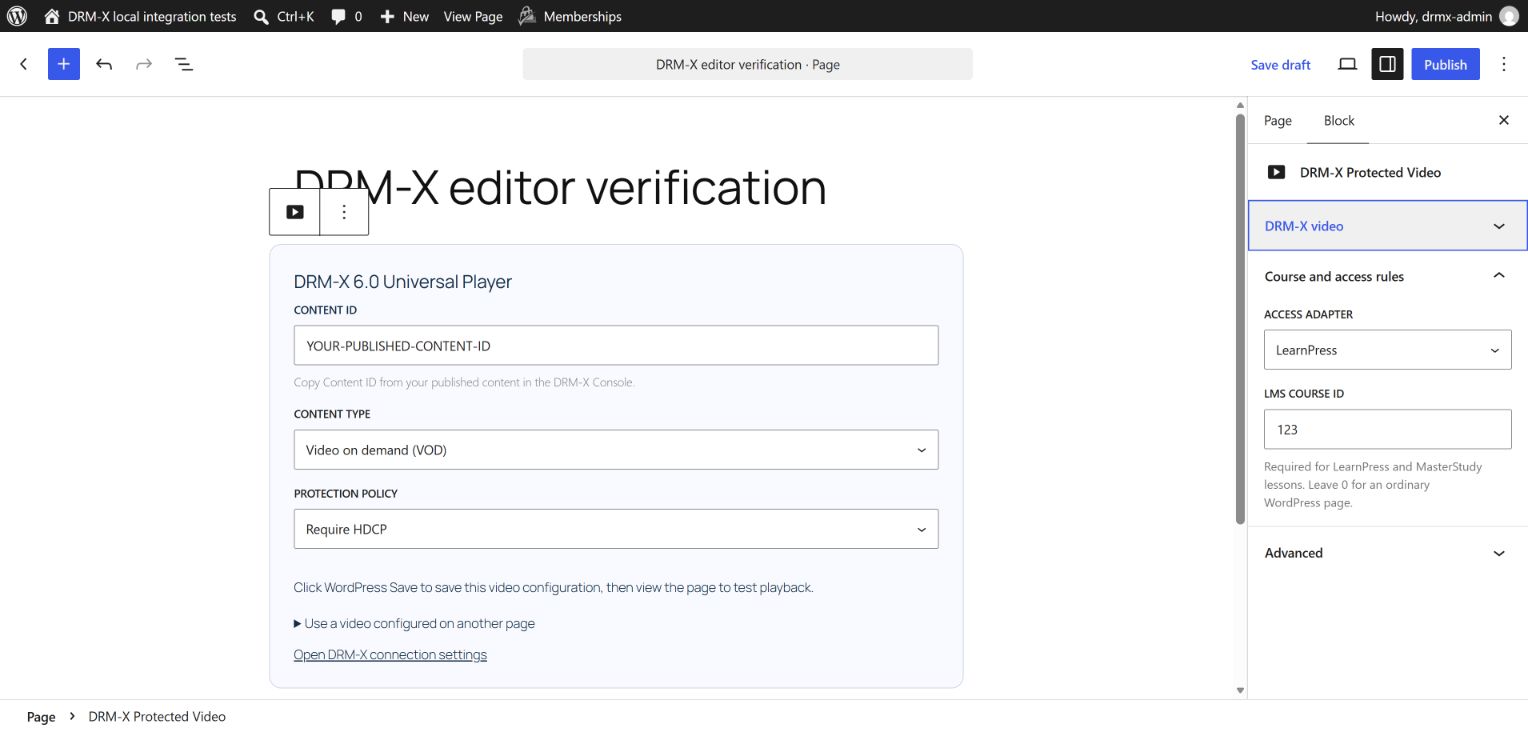
In Gutenberg, select the DRM-X Protected Video block and open Course and access rules in the Block sidebar. In a classic lesson editor, find the same heading inside DRM-X Protected Video below the content. These are two views of the same saved settings. To reuse another page’s video, use its WordPress post ID; leave the block’s existing-page ID at 0 when configuring this lesson.
LearnDash, LearnPress, Tutor LMS and MasterStudy detect the course from the lesson curriculum. Keep automatic detection when the lesson belongs to one course. For a shared lesson, select the linked course whose enrollment and protection policy should apply. The selected course must contain this lesson and must be published and accessible without a course password. An enrollment alone does not unlock an unpublished or password-protected course.
[drmx_player]
[drmx_player post_id="123"]
Policy priority is lesson, then associated course, then site default, then DRM-X environment default. Leaving a lesson policy empty means inherit; it does not skip the course and site settings. Choose a policy that matches the package key model and target devices.
LearnPress: classic lesson editor#
Open LearnPress → Lessons and edit a lesson as an administrator. In DRM-X Protected Video, enter Content ID and choose the content type and protection policy. Under Course and access rules, select LearnPress or automatic LMS detection. Confirm the linked course name. Click Copy player shortcode, paste it into the lesson content, and click Update. Reopen the lesson to check the saved values. The shortcode contains the lesson’s WordPress ID, not the course ID or DRM-X Content ID.
Tutor LMS: course builder#
Open Tutor LMS → Courses, edit a course, choose Curriculum, and click the lesson’s edit button. The lesson popup includes DRM-X video — Content ID, Content type, Course and access rules — Protection policy, and Player placement below the content editor. Tutor LMS automatically supplies the course association and checks enrollment. To insert the player, choose Add the DRM-X player at the end of this lesson, then save the lesson. Leave Tutor’s Video upload and URL fields empty for this DRM-X video. Reopen the lesson to verify its fields and shortcode.
If an older Tutor builder cannot display the fields, enable Tutor LMS → Settings → Course → Lesson → WP Editor for Lesson and open the lesson in the WordPress editor. Use its DRM-X Protected Video panel and copy the shortcode into the content. Instructor accounts cannot change trusted DRM-X mappings; ask a site administrator to configure them.
MasterStudy: native lesson editor#
Open MasterStudy → Lessons as a WordPress administrator, edit the lesson, and select Custom fields. Enter DRM-X Protected Video — Content ID, choose the content type and protection policy, and leave course ID at 0 for a lesson linked to one course. To insert the player, choose Add player when I save this lesson, then click Save. Reopen Custom fields to verify the saved values. You do not need Edit with WordPress in MasterStudy 3.7.49.
LearnDash: course and lesson access#
Use the dedicated LearnDash guide for lesson embedding, shared courses, enrollment errors and progression checks. Complete the common plugin installation above first.
Sensei LMS: lesson editor#
Open Sensei LMS lessons and edit the lesson content as an administrator. Add the DRM-X block or shortcode, configure the Content ID and select Sensei LMS under Course and access rules. Associate the lesson with its Sensei course, save and verify access using an enrolled learner and an unenrolled account.
How each adapter checks access#
LearnPress checks course access and the specific curriculum item. Tutor LMS checks the enrolled lesson and its course. Sensei LMS uses its native lesson-access function, including prerequisites. MasterStudy LMS checks the configured course and lesson.
WooCommerce Memberships, MemberPress and Paid Memberships Pro use their native post-access rules. An additional membership adapter is combined with the LMS check: both checks must pass. WooCommerce Subscriptions is supported through Memberships access rules; a subscription name or a completed order alone does not authorize a lesson.
When Tutor LMS content drip or MasterStudy sequential drip is enabled, the plugin requires a server filter that verifies that specific lesson. The default is denial. Implement drmx_tutor_drip_access or drmx_masterstudy_drip_access against your licensed add-on before enabling those lessons.
If Tutor LMS and Sensei LMS coexist, choose the adapter explicitly for shared lesson post types. Custom integrations use drmx_user_can_play_content and must return true only after the server verifies access.
Open the page and test the Universal Player#
Open the saved page as an authorized learner and click Play. The editor shows configuration fields; the page shown to learners displays DRM-X 6.0 Universal Player. WordPress checks the current user and saved mapping before requesting a playback session.
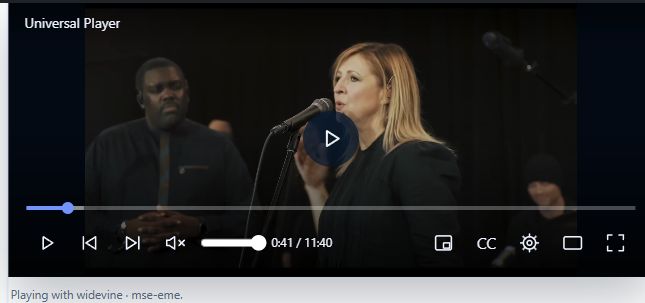
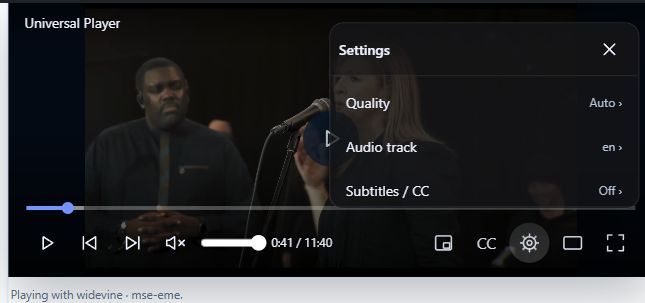
During playback, controls hide after three seconds of inactivity. Move the pointer over the player or click it to show them again. Controls stay visible while paused, using keyboard controls, or changing settings. Use the gear button to open Playback settings. Quality, audio tracks and subtitles depend on the published content. Use the volume, captions, picture-in-picture, theater and fullscreen controls where supported. To finish the session, open More options → Stop playback.
If the Content ID field or player is missing#
Upgrade to DRM-X 1.3.0-preview.7, save pending edits and refresh the editor. Course and access rules is not a separate WordPress menu. In LearnPress, look below the lesson content; in Tutor LMS, edit the lesson in Curriculum; in MasterStudy, open the native lesson editor’s Custom fields tab. Gutenberg users must select the DRM-X block.
Only an administrator with permission to edit the page can change its trusted DRM-X mapping. If you are editing with another role, ask the site administrator to configure the video.
Mapped post ID is an optional reference to another WordPress page that already has a DRM-X mapping. It is not Content ID. Keep it at 0 when configuring the video on this page. All blocks using the same page mapping share that video.
If playback is denied, check that the lesson and its course are published, the course is not password-protected, the content is published in the configured DRM-X environment, the content type matches, and the learner has access to the lesson. Check the LMS adapter, course ID and any additional membership requirement. Do not switch a paid course to WordPress signed-in users just to bypass an access failure.
Open the learning site through HTTPS with a valid certificate. An HTTP LAN address such as http://192.168.31.98:8080 is not a secure browser context and may hide Encrypted Media Extensions (EME), which DRM playback needs. HTTP localhost is an exception for testing on the same computer. If HTTPS still reports EME unavailable, check that the browser supports DRM and that protected-content playback is allowed; embedded frames also need permission to use encrypted media.
Test before rollout#
Exclude protected pages and the DRM-X REST endpoint from shared caches. Test expired memberships, refunds, drip schedules, browser navigation, Stop and concurrent-stream limits with your own published content.
LearnDash 4.10.1 setup and access-error repair · Integration source downloads
Upgrade an existing installation#
Back up the site, replace the existing shared DRM-X plugin with preview.7, and clear shared page caches. Keep one copy of the plugin. Reopen a mapped lesson and verify its saved values. Signed-out learners now receive a login link that returns to the lesson. Course publication/password checks apply to all five LMS adapters.
The session endpoint also rejects non-JSON or oversized requests and mismatched DRM-X Content IDs. Keep the bundled player request code; custom clients must send JSON under 16 KiB. Verify an enrolled learner, a signed-out visitor, an unenrolled learner, expired access and an unpublished course before rollout.