 DRM-X 6.0
تثبيت إضافة WordPress وإعدادها
ثبّت إضافة WordPress المشتركة واربط الدرس بـ Content ID، واحتفظ بقواعد التسجيل والعضوية في LMS.
نظرة سريعة على الإعداد#
التنزيل الحالي: 1.3.0-preview.7 · إضافة مشتركة واحدة لـ LearnDash وLearnPress وTutor LMS وSensei وMasterStudy.
تضبط الإضافة عادةً من شاشات الإدارة. احتفظ بالمستخدمين والمشتريات والتسجيلات الحالية؛ ولا حاجة إلى سجلات منفصلة لمنح الوصول.
- 1. إعداد الاتصال مرة واحدة
Settings → DRM-X 6.0أدخل بيانات اعتماد الخادم واختر مهايئ LMS.
- 2. ربط الدرس بالمحتوى
DRM-X Protected Videoالصق Content ID المنشور واختر VOD/Live والسياسة.
- 3. عرض المشغّل
محتوى الدرس
أدرج كتلة DRM-X أو الرمز القصير؛ واحتفظ بقواعد التسجيل في الدورة.
التثبيت والإعداد#
نزّل ZIP الإضافة أدناه. في WordPress، افتح Plugins → Add Plugin → Upload Plugin، وثبّت ZIP وفعّل DRM-X 6.0 Universal Player. ثم افتح Settings → DRM-X 6.0. ابدأ بموقع تجريبي.
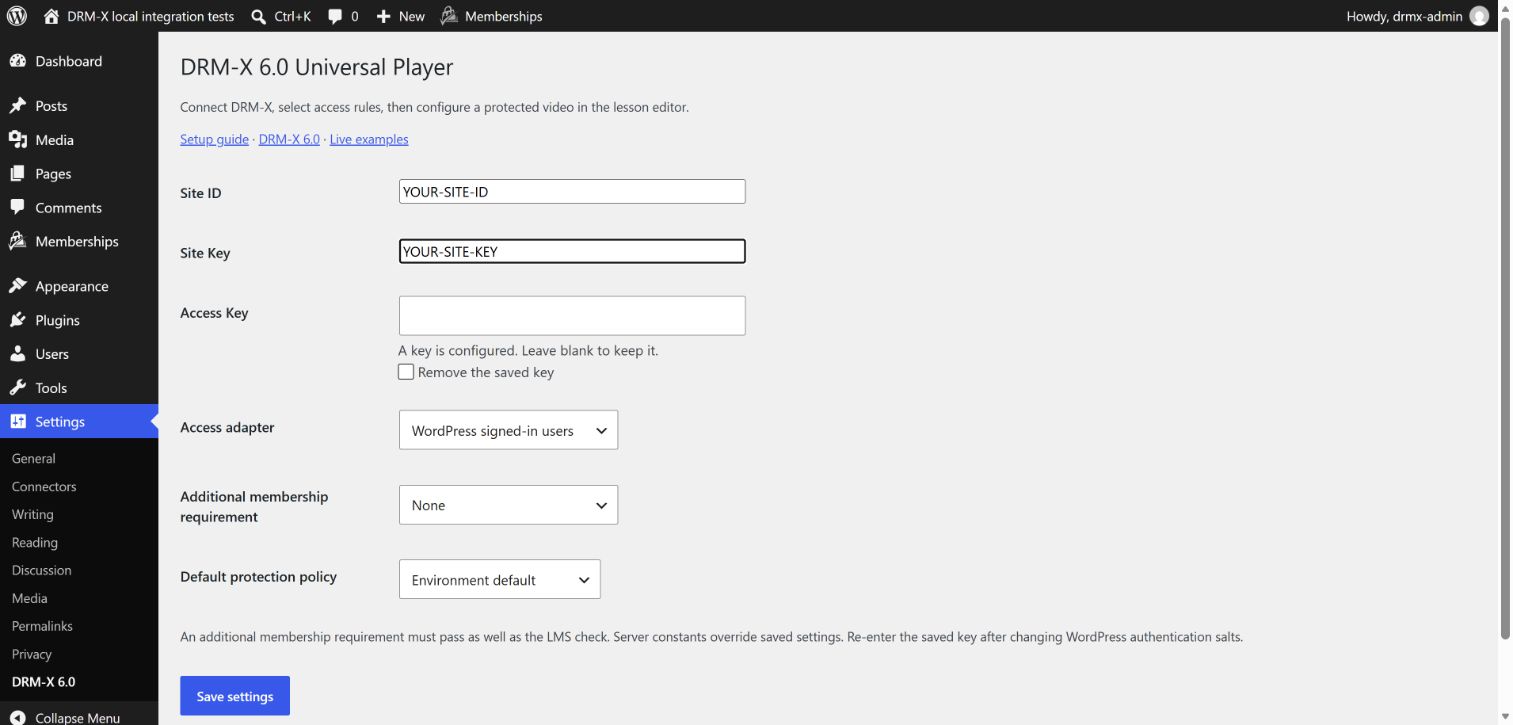
أدخل Site ID وSite Key وAccess Key من تكامل خادم يملك صلاحية license-tokens:create. تبقى هذه القيم على خادمك. يُشفّر Access Key المحفوظ باستخدام ملح المصادقة في WordPress؛ وبعد تغيير الملح، أدخل المفتاح مجددًا.
اختر مهايئ الوصول في LMS وسياسة الترخيص الافتراضية. يتيح اختيار WordPress signed-in users عمدًا لكل حساب مسجّل الدخول مشاهدة المنشور المرتبط والمنشور للعامة؛ استخدم مهايئ LMS أو العضوية للدورات المدفوعة.
انقر Save settings بعد إدخال قيم الاتصال. تستخدم الصورة قيمًا توضيحية؛ استبدلها بقيمك. عند تحديث اتصال موجود، يتيح ترك حقل Access Key فارغًا الاحتفاظ بالمفتاح المحفوظ.
ربط درس وتضمين المشغّل#
اتبع أدناه التعليمات المناسبة لمحرر الدرس. يستخدم Gutenberg كتلة DRM-X؛ وتستخدم دروس LearnPress الكلاسيكية لوحة أسفل المحتوى؛ ويستخدم Tutor LMS حقولًا داخل نافذة الدرس. يجب أن يضبط المسؤول الفيديو المحمي.
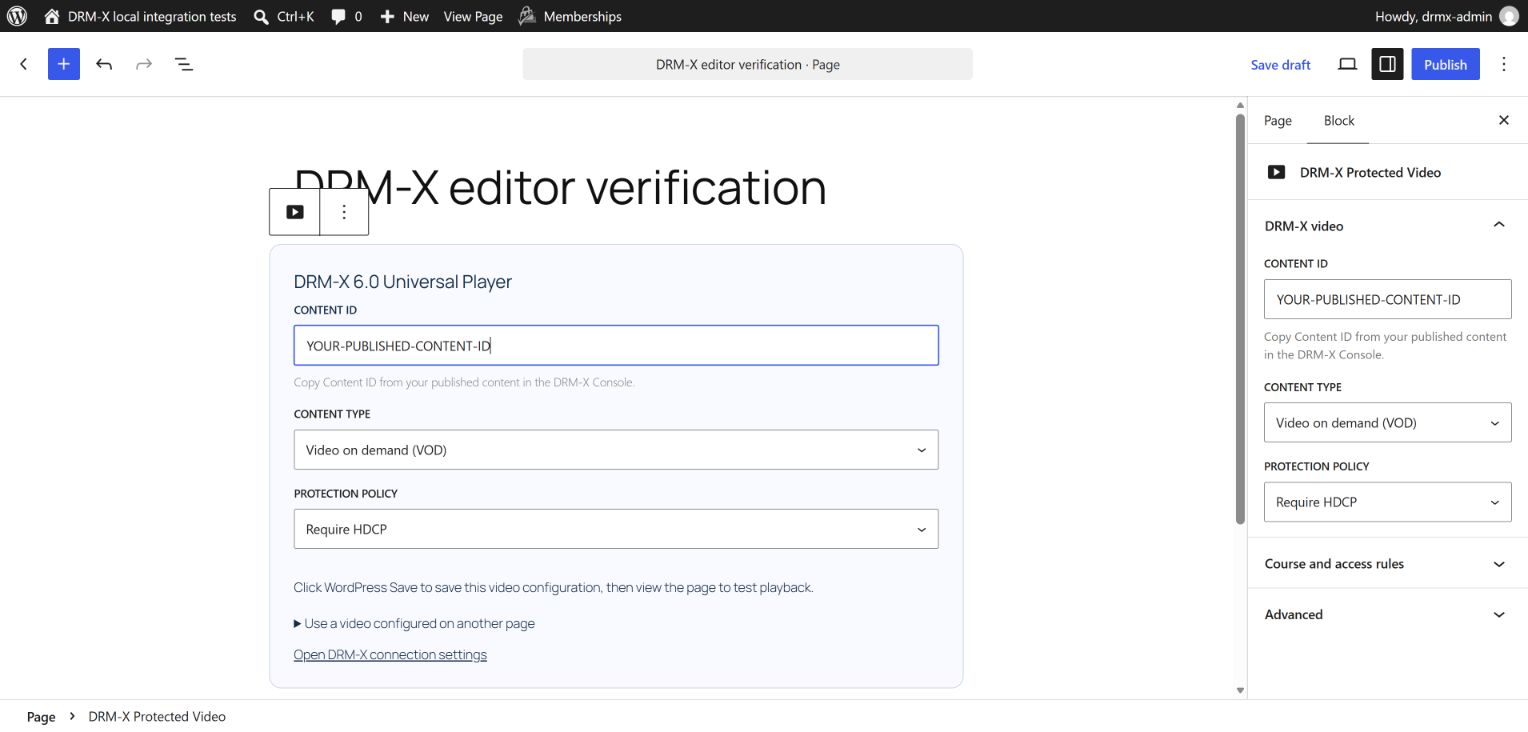
- انسخ Content ID من الفيديو المنشور في وحدة تحكم DRM-X والصقه في حقل Content ID. لا تلصق Site ID أو رابط فيديو أو معرّف منشور WordPress.
- اختر Video on demand (VOD) للفيديو المغلّف، أو Live stream للمحتوى المباشر. يجب أن يطابق الاختيار المحتوى المنشور.
- اختر Protection policy، أو أبقِ Use course or site default لوراثة السياسة. خيار Require HDCP في هذا المثال اختيار لسياسة الحماية، وليس شرطًا لكل فيديو.
- انقر Save لصفحة منشورة، أو Save draft عند إعداد صفحة جديدة. انشر الصفحة عندما تصبح جاهزة للمتعلمين. أعد فتح المحرر للتأكد من حفظ Content ID والسياسة.
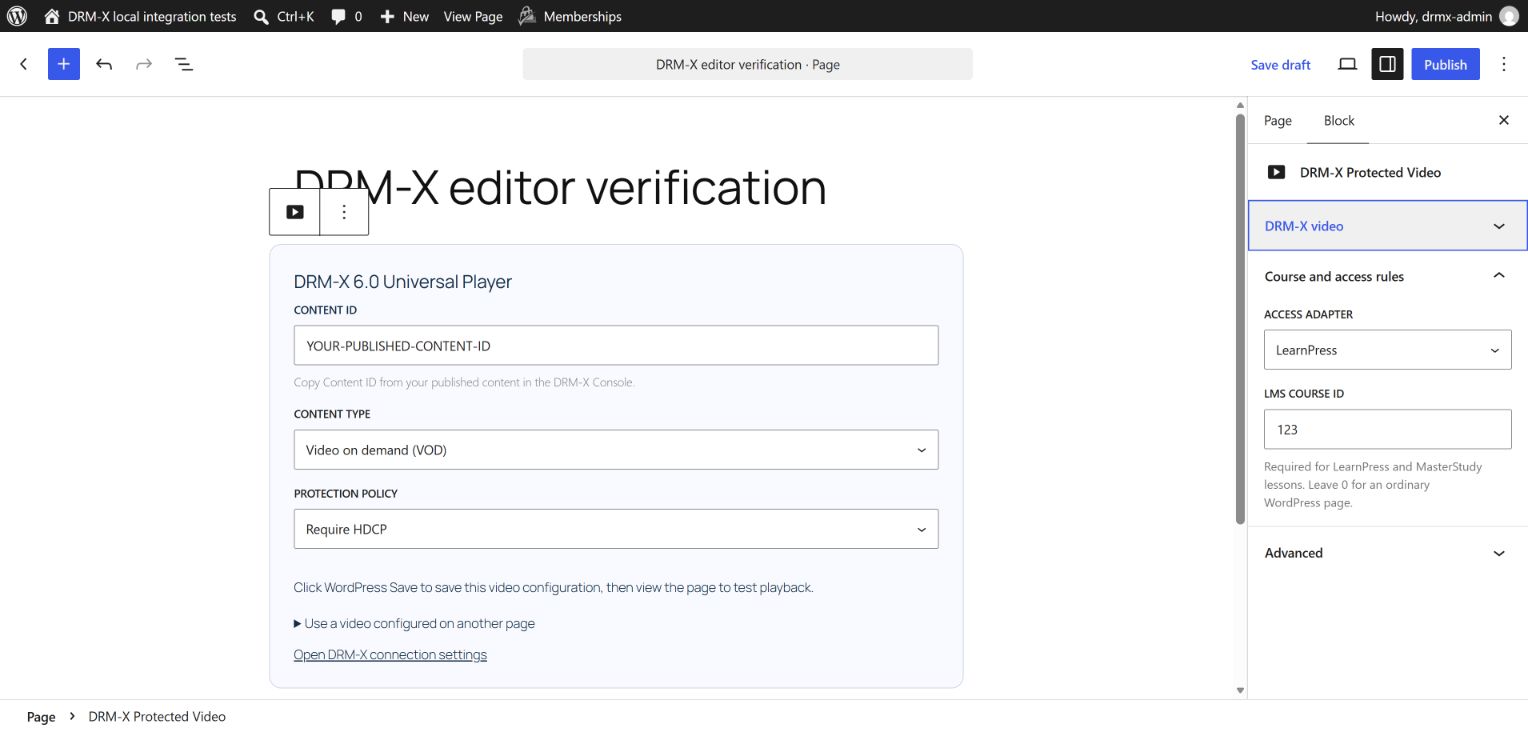
في Gutenberg، اختر كتلة DRM-X Protected Video وافتح Course and access rules في الشريط الجانبي للكتلة. في محرر الدرس الكلاسيكي، ابحث عن العنوان نفسه داخل DRM-X Protected Video أسفل المحتوى. تعرض الواجهتان الإعدادات المحفوظة نفسها. لإعادة استخدام فيديو صفحة أخرى، استخدم معرّف منشورها في WordPress؛ وأبقِ معرّف الصفحة الموجودة في الكتلة على 0 عند ضبط هذا الدرس.
يحدّد LearnDash وLearnPress وTutor LMS وMasterStudy الدورة من منهج الدرس. أبقِ الاكتشاف التلقائي عندما ينتمي الدرس إلى دورة واحدة. للدرس المشترك، اختر الدورة المرتبطة التي يجب تطبيق سياسة التسجيل والحماية الخاصة بها. يجب أن تحتوي الدورة المختارة على هذا الدرس وأن تكون منشورة ومتاحة دون كلمة مرور للدورة. التسجيل وحده لا يتيح دورة غير منشورة أو محمية بكلمة مرور.
[drmx_player]
[drmx_player post_id="123"]
أولوية السياسة هي الدرس، ثم الدورة المرتبطة، ثم افتراضي الموقع، ثم افتراضي بيئة DRM-X. ترك سياسة الدرس فارغة يعني الوراثة، ولا يتجاوز إعدادات الدورة والموقع. اختر سياسة تطابق نموذج مفاتيح الحزمة والأجهزة المستهدفة.
LearnPress: محرر الدرس الكلاسيكي#
افتح LearnPress → Lessons وعدّل درسًا كمسؤول. في DRM-X Protected Video، أدخل Content ID واختر نوع المحتوى وسياسة الحماية. ضمن Course and access rules، اختر LearnPress أو الكشف التلقائي عن LMS. تحقق من اسم الدورة المرتبطة. انقر Copy player shortcode والصقه في محتوى الدرس ثم انقر Update. أعد فتح الدرس للتحقق من القيم المحفوظة. يحتوي الرمز القصير على معرّف الدرس في WordPress، وليس معرّف الدورة أو DRM-X Content ID.
Tutor LMS: منشئ الدورات#
افتح Tutor LMS → Courses وعدّل دورة واختر Curriculum وانقر زر تعديل الدرس. تتضمن نافذة الدرس أسفل المحرر DRM-X video — Content ID وContent type وCourse and access rules — Protection policy وPlayer placement. يحدد Tutor LMS ارتباط الدورة تلقائيًا ويتحقق من التسجيل. اختر Add the DRM-X player at the end of this lesson ثم احفظ لإدراج المشغّل. اترك حقلي Video upload وURL في Tutor فارغين لهذا الفيديو. أعد فتح الدرس للتحقق من الحقول والرمز القصير.
إذا تعذّر على منشئ Tutor قديم إظهار الحقول، ففعّل Tutor LMS → Settings → Course → Lesson → WP Editor for Lesson وافتح الدرس في محرر WordPress. استخدم لوحة DRM-X Protected Video وانسخ الرمز القصير إلى المحتوى. لا يمكن لحسابات المدرّسين تغيير ارتباطات DRM-X الموثوقة؛ اطلب من مسؤول الموقع ضبطها.
MasterStudy: محرر الدرس الأصلي#
افتح MasterStudy → Lessons كمسؤول WordPress، وعدّل الدرس واختر Custom fields. أدخل DRM-X Protected Video — Content ID واختر نوع المحتوى والسياسة، واترك معرّف الدورة على 0 للدرس المرتبط بدورة واحدة. اختر Add player when I save this lesson ثم Save لإدراج المشغّل. أعد فتح Custom fields للتحقق من القيم المحفوظة. لا تحتاج إلى Edit with WordPress في MasterStudy 3.7.49.
LearnDash: الوصول إلى الدورة والدرس#
استخدم دليل LearnDash المخصص لتضمين الدروس والدورات المشتركة وأخطاء التسجيل وفحص التقدم. أكمل أولًا تثبيت الإضافة المشترك أعلاه.
Sensei LMS: محرر الدرس#
افتح دروس Sensei LMS وعدّل المحتوى كمسؤول. أضف كتلة DRM-X أو الرمز القصير واضبط Content ID واختر Sensei LMS ضمن Course and access rules. اربط الدرس بدورته في Sensei، واحفظ واختبر الوصول بمتعلم مسجّل وحساب غير مسجّل في الدورة.
كيف يتحقق كل مهايئ من الوصول#
يتحقق LearnPress من الوصول إلى الدورة وعنصر المنهج المحدد. ويتحقق Tutor LMS من الدرس المسجّل فيه ودورته. يستخدم Sensei LMS دالة الوصول الأصلية إلى الدرس، بما فيها المتطلبات السابقة. ويتحقق MasterStudy LMS من الدورة والدرس المضبوطين.
تستخدم WooCommerce Memberships وMemberPress وPaid Memberships Pro قواعدها الأصلية للوصول إلى المنشورات. يُجمع مهايئ العضوية الإضافي مع فحص LMS: يجب أن يسمح الفحصان بالوصول. يُدعم WooCommerce Subscriptions عبر قواعد Memberships؛ ولا يكفي اسم الاشتراك أو اكتمال الطلب وحده لمنح صلاحية الدرس.
عند تفعيل الإتاحة التدريجية لمحتوى Tutor LMS أو الإتاحة المتسلسلة في MasterStudy، تتطلب الإضافة مرشحًا في الخادم يتحقق من صلاحية الدرس المحدد. الرفض هو السلوك الافتراضي. نفّذ drmx_tutor_drip_access أو drmx_masterstudy_drip_access مع إضافتك المرخّصة قبل تفعيل هذه الدروس.
إذا كان Tutor LMS وSensei LMS مثبتين معًا، فاختر المهايئ صراحةً لأنواع منشورات الدروس المشتركة. تستخدم التكاملات المخصصة drmx_user_can_play_content، ويجب أن تُرجع true فقط بعد تحقق الخادم من صلاحية الوصول.
فتح الصفحة واختبار Universal Player#
افتح الصفحة المحفوظة كمتعلم مصرح له وانقر Play. يعرض المحرر حقول الإعداد؛ وتعرض صفحة المتعلمين DRM-X 6.0 Universal Player. يتحقق WordPress من المستخدم الحالي والارتباط المحفوظ قبل طلب جلسة تشغيل.
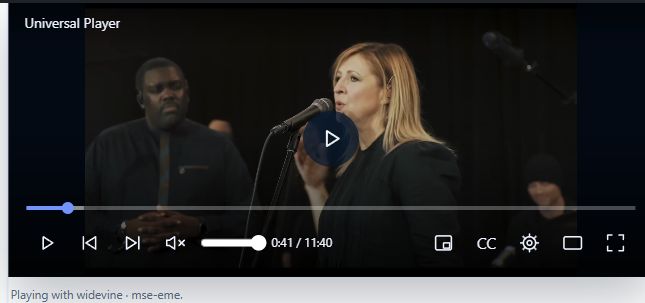
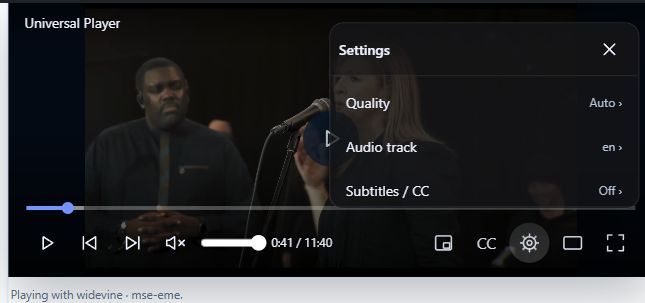
تختفي أدوات التحكم بعد ثلاث ثوانٍ دون تفاعل أثناء التشغيل. حرّك المؤشر فوق المشغّل أو انقر عليه لإظهارها مجددًا. تبقى ظاهرة عند الإيقاف المؤقت أو استخدام لوحة المفاتيح أو تغيير الإعدادات. يفتح زر الترس إعدادات التشغيل. تعتمد الجودة ومسارات الصوت والترجمة على المحتوى المنشور. استخدم أدوات الصوت والترجمة وصورة داخل صورة ووضع المسرح وملء الشاشة عند دعمها. لإنهاء الجلسة، افتح More options → Stop playback.
عند غياب حقل Content ID أو المشغّل#
حدّث إلى DRM-X 1.3.0-preview.7 واحفظ التعديلات المعلّقة وحدّث المحرر. Course and access rules ليست قائمة WordPress مستقلة. في LearnPress، انظر أسفل محتوى الدرس؛ وفي Tutor LMS، عدّل الدرس في Curriculum؛ وفي MasterStudy، افتح تبويب Custom fields في محرر الدرس الأصلي. على مستخدمي Gutenberg تحديد كتلة DRM-X.
يمكن فقط لمسؤول يملك صلاحية تعديل الصفحة تغيير ارتباط DRM-X الموثوق فيها. إذا كنت تعدّلها بدور آخر، فاطلب من مسؤول الموقع ضبط الفيديو.
Mapped post ID مرجع اختياري إلى صفحة WordPress أخرى لديها ارتباط DRM-X بالفعل. وهو ليس Content ID. أبقه على 0 عند ضبط فيديو هذه الصفحة. تشترك كل الكتل التي تستخدم ارتباط الصفحة نفسه في الفيديو ذاته.
إذا رُفض التشغيل، فتحقق من نشر الدرس ودورته، ومن أن الدورة غير محمية بكلمة مرور، ومن نشر المحتوى في بيئة DRM-X المضبوطة، ومن تطابق نوع المحتوى، ومن حق المتعلم في الوصول إلى الدرس. تحقق من مهايئ LMS ومعرّف الدورة وأي شرط عضوية إضافي. لا تغيّر دورة مدفوعة لتسمح لجميع مستخدمي WordPress المسجّلين بالدخول لمجرد تجاوز رفض الوصول.
افتح موقع التعلم عبر HTTPS بشهادة صالحة. عنوان HTTP LAN مثل http://192.168.31.98:8080 ليس سياق متصفح آمنًا وقد يحجب Encrypted Media Extensions (EME) اللازمة لتشغيل DRM. يُستثنى HTTP localhost للاختبار على الحاسوب نفسه. إذا بقي EME غير متاح عبر HTTPS، فتحقق من دعم المتصفح لـ DRM والسماح بتشغيل المحتوى المحمي؛ وتحتاج الإطارات المضمّنة أيضًا إلى إذن استخدام الوسائط المشفّرة.
الاختبار قبل الإطلاق#
استبعد الصفحات المحمية ونقطة نهاية DRM-X REST من ذاكرات التخزين المؤقت المشتركة. اختبر العضويات المنتهية والمبالغ المستردة وجداول الإتاحة التدريجية والتنقل في المتصفح وStop وحدود التشغيل المتزامن باستخدام محتواك المنشور.
إعداد LearnDash 4.10.1 وإصلاح أخطاء الوصول · تنزيلات مصدر التكامل
ترقية تثبيت موجود#
أنشئ نسخة احتياطية من الموقع، واستبدل إضافة DRM-X المشتركة الحالية بالإصدار preview.7، وامسح ذاكرات التخزين المؤقت المشتركة للصفحات. احتفظ بنسخة واحدة من الإضافة. أعد فتح درس مرتبط وتحقق من قيمه المحفوظة. يحصل المتعلم الذي لم يسجّل الدخول الآن على رابط لتسجيل الدخول يعيده إلى الدرس. تُطبّق فحوص نشر الدورة وكلمة مرورها على مهايئات LMS الخمسة جميعها.
ترفض نقطة نهاية الجلسة أيضًا الطلبات غير JSON أو الأكبر من الحد وContent IDs التي لا تطابق استجابة DRM-X. احتفظ بشفرة الطلبات للمشغّل المرفق؛ يجب أن يرسل العملاء المخصصون JSON بحجم أقل من 16 KiB. اختبر متعلمًا مسجّلًا وزائرًا لم يسجّل الدخول ومتعلمًا غير مسجّل في الدورة ووصولًا منتهيًا ودورة غير منشورة قبل الإطلاق.