 DRM-X 6.0
Amazon Fire TV SDK for Vega OS
Build a native Amazon Fire TV app with DRM-X Universal Player: download eligibility, screenshots, Vega setup, viewer authentication, configuration, build and device testing.
يُرسَل الفيديو المشفّر وتراخيص DRM عبر مسارين منفصلين
توزّع CDN الفيديو المشفّر. يتحقق خادم التطبيق من صلاحية الوصول، وتسمح خدمة تراخيص DRM بفك التشفير على جهاز متوافق.
- التخزين / CDN
يوزّع الوسائط المشفّرة إلى المشغّل.
- خادم التطبيق لديك
يتحقق من حق المشاهد في الوصول ويطلب تصريح التشغيل من DRM-X.
- DRM-X
تتحقق من تصريح التشغيل وتعالج طلب ترخيص DRM.
- المشغّل + الجهاز
يستخدم نظام DRM في الجهاز للحصول على ترخيص وتشغيل الوسائط المشفّرة.
Amazon Fire TV: build a native Universal Player app#
Use the DRM-X 6.0 Universal Player SDK to build your own Amazon Fire TV app for Vega OS. The sample uses React Native controls and the native Vega media surface for protected Widevine DASH playback. It does not embed a web page.
Check the device operating system first. This package targets Vega OS 1.2 and armv7; it is not an Android APK. For Android-based Fire OS, use the Android integration path and qualify your target device separately.
Android SDK · Universal Player SDKs
1. Download the customer SDK#
Sign in to the DRM-X Console, choose your organization, open Integrations, and find Amazon Fire TV (Vega OS). An active Professional or Enterprise subscription is required to download the SDK ZIP. Trial, Standard, expired and suspended subscriptions cannot download it. The tutorial is public.
Console → Integrations · Professional / Enterprise
The ZIP includes SDK source, a configurable sample app, build.py, automated tests, qualification notes and the tested armv7 .vpkg installer. The download card shows the release date and SHA-256 checksum. Verify the ZIP before extracting it. Amazon SDK dependencies are obtained from Amazon during your build.
shasum -a 256 drmx-firetv-sdk-20260921.1.zip
cd drmx-firetv-vega-sdk
2. Prepare the build computer and Fire TV#
Use macOS or native Ubuntu with Amazon Vega CLI 1.3.4 / SDK 0.24.12044, Node.js 20+, Python 3.10+, Git and Java 21+. This release was built on an Apple Silicon Mac with Java 21. Install and authenticate Amazon tooling using its official instructions. A DRM-X subscription does not replace Amazon developer registration or device authorization.
Amazon: run your app on Fire TV · Amazon: native media setup
On Fire TV, open Settings → My Fire TV → Developer Options and enable Developer Mode using Amazon’s current device-authorization flow. Connect USB to the build computer when instructed. Authorize the device and computer; signing in to an Amazon web page alone is not the same as completing the Vega authorization flow.
For LAN testing, enable the device TCP/IP development connection and put Fire TV and the build computer on the same trusted network. Allow the Vega tools in macOS Privacy & Security → Local Network if prompted. Replace FIRE_TV_IP below with the device’s current address. This Vega connection uses VDA, not Android ADB.
export PATH="$HOME/vega/bin:/opt/homebrew/bin:/opt/homebrew/opt/openjdk@21/bin:$PATH"
export FIRE_TV_IP="YOUR_FIRE_TV_IP"
vega exec vda connect "$FIRE_TV_IP:5555"
vega device list
3. Try the included native player#
From the extracted SDK directory, install the included build 9 package and launch it. The sample uses the DRM-X public demonstration catalog. No Site Key or Access Key is required in the app. The installer is for development testing, not an Amazon Appstore listing.
vega device install-app -d "$FIRE_TV_IP:5555" \
  --packagePath installer/drmx-firetv-native-build9_armv7.vpkg
vega device launch-app -d "$FIRE_TV_IP:5555" \
  --appName com.haihaisoft.drmx.firetv.main
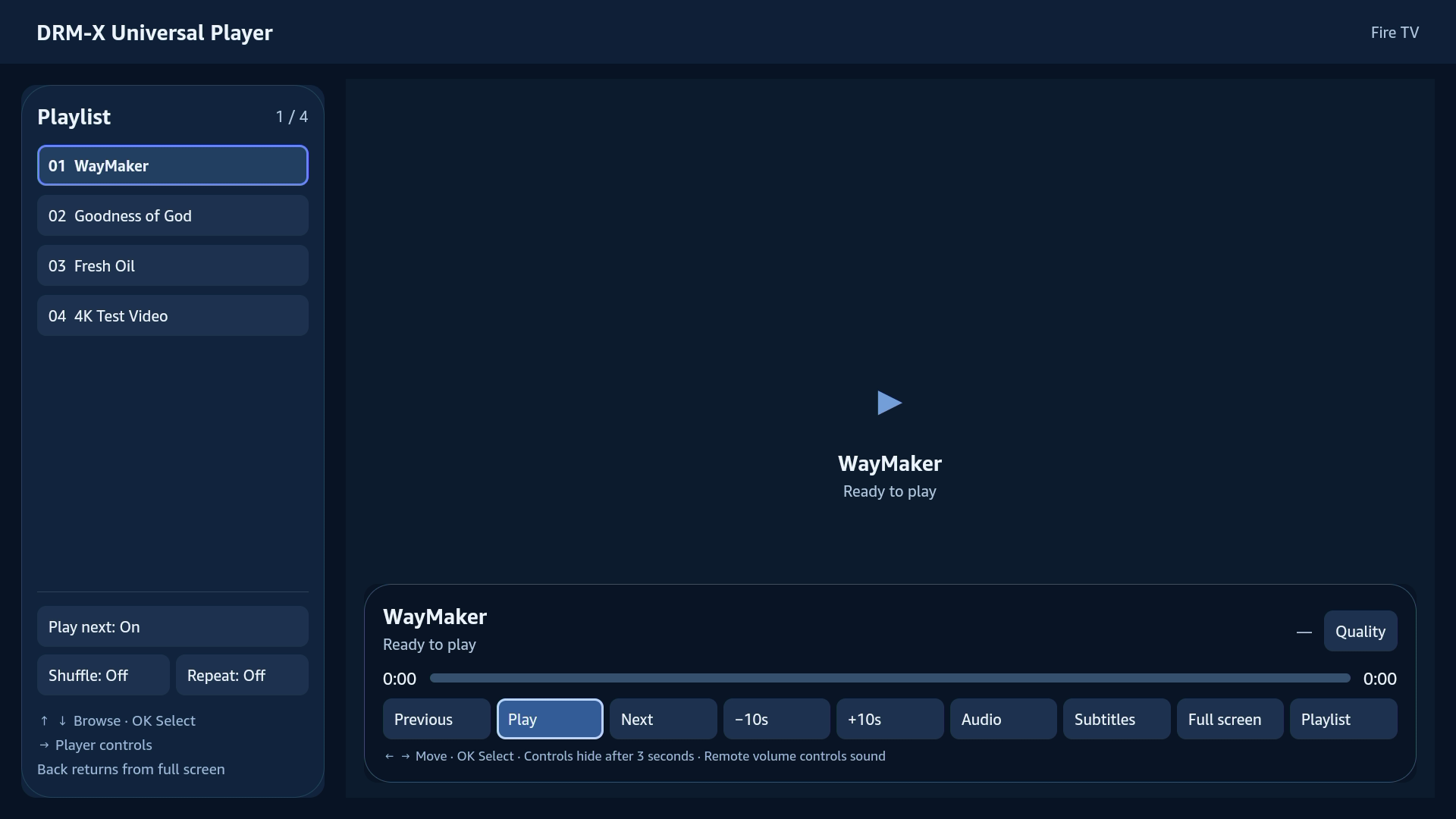
Select a playlist item and press OK. Play next is on by default: when an item ends, the app releases its playback session and starts the next item in order. Shuffle and Repeat are optional. Playback stops after the last item unless Repeat is enabled.
Full screen fills the video surface to the display, preserving the video’s aspect ratio. Controls hide after three seconds while playing. The first navigation or OK press reveals hidden controls without activating a button. Back closes a menu, exits fullscreen, stops playback, then leaves the app.
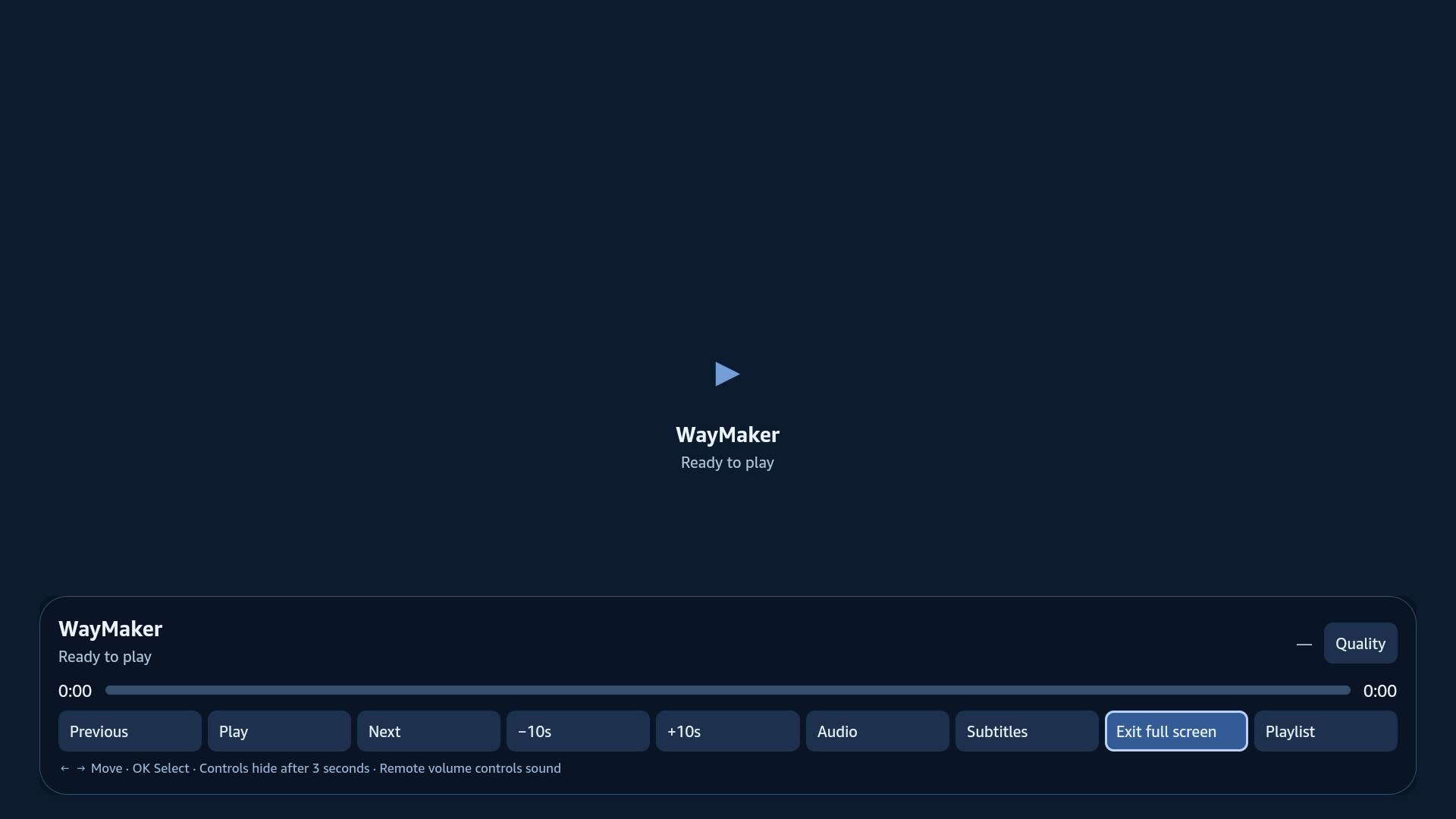
The number immediately left of Quality, such as 480p or 1080p, follows the active streaming variant. It is not the HDMI display resolution. Quality choices set a maximum resolution, subject to the backend policy and available tracks. Subtitles supports English and Chinese text tracks with a compact font; captions move above visible controls.
4. Configure your app and viewer login#
Edit app-config.json. Set your application name, a unique reverse-domain packageId, brand color, HTTPS session endpoint, maximumHeight and playlist of Published Content IDs. For a customer application, set publicDemoAuthentication to false. The sample defaults are for the public demo only.
{
  "appName": "My Video App",
  "packageId": "com.example.video.firetv",
  "accentColor": "#6488ff",
  "sessionEndpoint": "https://video.example.com/api/drmx/playback-session",
  "maximumHeight": 1080,
  "publicDemoAuthentication": false,
  "playlist": [
    {"contentId": "YOUR_PUBLISHED_CONTENT_ID", "title": "Lesson 1", "contentType": "vod"}
  ]
}
Implement authenticateViewer() in authentication.ts using your own viewer sign-in. Return a short-lived viewer Authorization header. Your backend must authenticate that viewer and check course enrollment, purchase or subscription before issuing a playback session. Do not hard-code a viewer token into the app.
Your backend implements Universal Playback Session Contract v1. It owns the Published Content ID mapping, manifest selection and license policy. Keep Site Key, Access Key and other long-lived credentials on the server. The SDK obtains the session, passes the native Widevine license request through the authorized route and releases the session when playback ends.
Universal Playback Session Contract / Web integration · Backend integration examples
The included App.tsx wires configuration and authentication into DrmXUniversalPlayerView. Reuse this component for the complete player, or use UniversalPlayer and SessionClient from the SDK with your own interface. Keep configuration and callback references stable between renders.
import {DrmXUniversalPlayerView} from './sdk/UniversalPlayerView';
import configuration from './app-config.json';
import {authenticateViewer} from './authentication';

export const App = () => <DrmXUniversalPlayerView
  configuration={configuration}
  authenticateViewer={authenticateViewer}
/>;
5. Build, install and reopen your app#
Run the build from the extracted source directory. Use a work directory outside SDK source. build.py validates configuration, verifies the pinned Amazon Shaka download, stages the official Vega template, type-checks TypeScript and builds the native armv7 Release package. Choose a build number higher than the installed version.
node --test tests/*.test.cjs
python3 build.py --work "$HOME/Developer/MyFireTVBuild" --build-number 10
vega device install-app -d "$FIRE_TV_IP:5555" \
  --packagePath "$HOME/Developer/MyFireTVBuild/DrmXFireTV/build/armv7-release/drmx-firetv-sample_armv7.vpkg"
vega device launch-app -d "$FIRE_TV_IP:5555" \
  --appName com.example.video.firetv.main
To reopen an installed app, reconnect VDA and repeat only launch-app, using your packageId followed by .main. You do not need to rebuild or reinstall. Sideloaded development apps may not appear in Your Apps or have an Open App button on Vega firmware; the CLI launch is the tested path.
6. Troubleshooting#
SDK download denied: check the selected organization and its active Professional or Enterprise subscription. Download authorization is rechecked on the server for every request; copying a download URL does not bypass it.
Connection timeout: confirm the current Fire TV IP, Developer Mode, TCP/IP connection and trusted LAN. On macOS, check Local Network permission for Vega tools. If authorization is required, complete the current Amazon device flow rather than reusing an expired code.
Video with no sound on a monitor: HDMI audio needs speakers or a headphone output connected to headphones/powered speakers. Some monitors, including MSI MD271UL, have no built-in speakers. Test the Fire TV audio format and connected audio device before diagnosing an SDK error.
Playback authorization fails: verify the viewer session, Published Content ID and backend entitlement check. Keep diagnostic reports to SDK version, device/OS, request correlation ID and redacted error code; exclude credentials, signed URLs, viewer headers and license payloads.
7. Tested scope and release checks#
Release 1.0.0-preview.3 / build 9 was tested on one Vega OS 1.2 armv7 Fire TV. Native protected VOD video and sound were confirmed; device events verified ordered next-item playback, fullscreen, three-second control hiding, English/Chinese cue selection and an active 1920×1080 stream variant. All 21 automated tests and the native build/type checks passed.
This is a developer preview, not qualification of every Fire TV or display. Test your backend, content, remote focus, audio/subtitle tracks, network recovery and device lifecycle before release. HDCP/output-security level, 4K/HDR, live, offline and Appstore readiness are not established by these checks. Plain-text captions do not preserve rich cue styling or bitmap subtitles; system caption style overrides are not applied.
Get the customer SDK · DRM-X 6.0 Multi-DRM · Playback troubleshooting