 DRM-X 6.0
Samsung Tizen SDK 및 TV 평가
Samsung TV 평가판 플레이어를 설치하고 WGT를 구성 및 서명한 다음 Widevine VOD를 Tizen Universal Player SDK와 통합합니다.
SDK ZIP의 DEMO-QUICKSTART.md에 따라 PHP 데모를 사용해 보세요. 자체 콘텐츠를 사용하려면 먼저 웹사이트와 백엔드를 통합한 다음, MOBILE-AND-TV-APPS.md에 따라 앱을 동일한 로그인 및 시청 권한 규칙에 연결하세요.
1. 공개 TV 평가 키트 다운로드#
ZIP에는 DRMXEvaluation.wgt, Python 로컬 보조 서비스 및 구성 스크립트가 포함되어 있습니다. 키트가 이미 있는 경우 서명되지 않은 WGT를 별도로를 다운로드하세요. WGT을 TV.에 대해 구성하고 다시 서명해야 합니다. Samsung 스토어 앱이나 범용 원클릭 설치 프로그램이 아닌 개발자 설치입니다.
- 호환되는 물리적 Samsung TV 및 동일한 신뢰할 수 있는 개인 LAN에 있는 컴퓨터.
- Python 3.12+, Tizen Studio, Samsung TV 확장 및 Samsung Certificate Extension 2.0.73 이상.
- 장치의 DUID을 포함하는 Samsung TV 인증서 프로필입니다. 이 공개 데모에는 유료 DRM-X 요금제가 필요하지 않습니다.
Samsung의 공식 TV SDK 설치 및 TV 인증서 가이드를 따르세요. 도구 화면은 버전에 따라 다릅니다.
공개 다운로드 확인
평가 키트 SHA-256:
0adbb09e72751a1934b94bcf7e59cb42f84b5822cba14f884ecb047b91bace9a서명되지 않은 WGT SHA-256:
aa03536de098471e6f4870ebf668263ddd1799f1f091e3424197cd3b424df8f8PowerShell: Get-FileHash .\DRMXEvaluation.wgt -Algorithm SHA256. 구성되거나 서명된 위젯에는 다른 해시가 있습니다.
2. TV을 페어링하고 인증서를 만듭니다.#
- TV에서 Developer Mode을 활성화합니다.지원되는 TV에서 앱을 열고 12345를 입력하여 Developer Mode를 열고 스위치를 켜고 컴퓨터의 LAN IP를 입력하고 다시 시작합니다. TV 지시대로. 모델이 다를 경우 Samsung의 TV 장치 가이드를 따르세요.
- TV를 연결하세요.Tizen Studio의 Device Manager / Remote Device Manager를 열고 TV의 LAN IP를 추가하여 연결합니다. TV에서 컴퓨터에 접근할 수 있어야 하며 로컬 보조 서비스는 신뢰할 수 있는 사설 네트워크에서만 허용하세요.
- Samsung TV 인증서를 만듭니다. Certificate Manager 열기 → 추가 → Samsung → TV. TV의 DUID가 포함된 작성자 인증서와 배포자 인증서를 사용하세요. 작성자의 개인 키를 보안 서명 저장소에 보관하세요.
- 설치를 허용합니다.Device Manager에서 연결된 TV를 선택하고 가능한 경우 Permit to install applications를 선택합니다. 다음 명령을 위해 인증서 프로필 이름을 유지하세요.
3. 구성, 빌드 및 설치#
평가 ZIP를 공백 없이 짧은 경로로 추출합니다. 거기에서 터미널을여십시오. 두 자리 표시자를 실제 개인 LAN 주소로 바꿉니다.
python configure-evaluation.py --computer-ip YOUR_COMPUTER_IP --tv-ip YOUR_TV_IP이 터미널을 계속 실행하세요. 스크립트는 app 폴더를 만들고 TV IP 및 새로운 임시 접근 권한으로 제한된 로컬 보조 서비스를 시작합니다. 고객 자격 증명 없이 HTTPS로 공개 데모에 연결하며 4시간 후 만료됩니다. 설정된 위젯을 공개하거나 포트를 인터넷에 노출하지 마세요.
동일한 폴더에서 두 번째 터미널을 엽니다. Tizen Studio 설치에서 CLI 실행 파일을 사용하고 인증서 프로필과 TV 주소를 바꿉니다.
tizen build-web -out .build -- app
tizen package -t wgt -s YOUR_SAMSUNG_PROFILE -- app/.build
sdb connect YOUR_TV_IP:26101
tizen install -n DRMXEvaluation.wgt -s YOUR_TV_IP:26101 -- app/.build
tizen run -p DrmXEval01.Player -s YOUR_TV_IP:26101
Windows에서 도구는 일반적으로 tools\ide\bin\tizen.bat 및 tools\sdb.exe 내부 Tizen Studio에 있습니다. 명령을 찾을 수 없으면 전체 경로를 사용하거나 해당 폴더를 터미널 PATH에 추가하세요.
4시간이 지나면 기존 로컬 보조 서비스를 중지하고 새 --output app-new 폴더로 설정 스크립트를 다시 실행하세요. 해당 폴더를 빌드하고 다시 서명해야 합니다. 임시 접근 권한이 바뀌므로 만료된 설치 설정을 재사용하지 마세요.
4. VOD 및 리모컨을 사용해 보세요.#
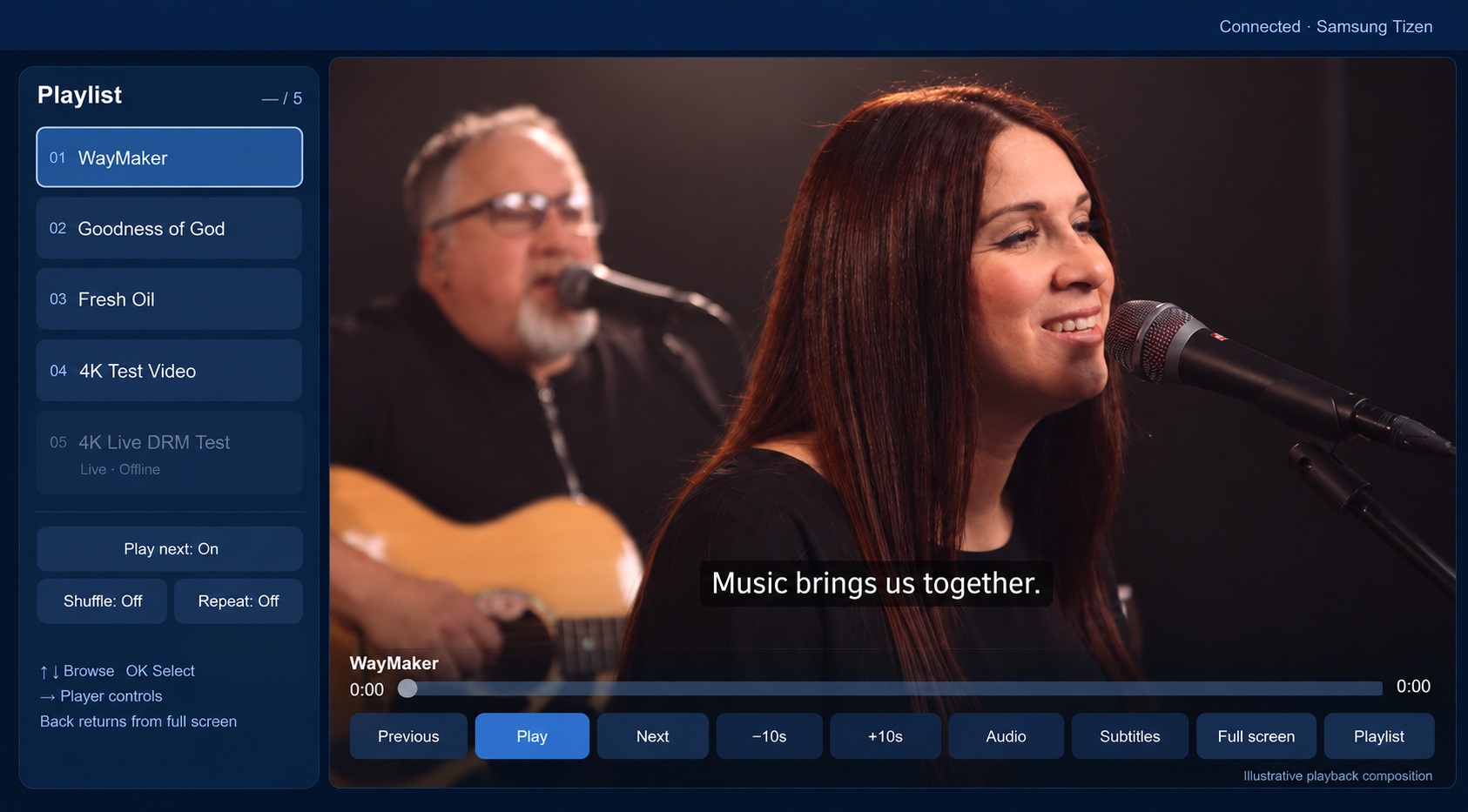
- 위/아래로 VOD 제목을 선택하고 OK를 누릅니다. 움직이는 영상과 소리를 실물로 확인하세요 TV.
- 컨트롤 오른쪽으로 이동합니다. 일시 중지/다시 시작, 이전/다음, ±10초 탐색 및 타임라인을 사용해 보세요.
- 전체 화면을 사용해 보세요. Back 재생을 중지하기 전에 메뉴를 닫거나 전체 화면을 종료합니다. 볼륨은 TV의 일반 리모컨으로 유지됩니다.
- 재생 목록을 확인하고 다음 재생, 셔플 및 반복을 수행합니다. 오디오/자막 옵션은 실제 미디어 트랙에 따라 다릅니다.
- 로컬 보조 서비스을 닫기 전에 재생을 중지하세요. 별도로 자격을 갖추지 않는 한 실시간 참가는 불가능합니다. 이 키트는 방송을 시작하지 않습니다.
데모 보조 서비스는 미디어를 복호화하거나 트랜스코딩하지 않고 Full HD 영상을 선택합니다. 호환되는 자막 트랙을 직접 추가하세요. 공개 키트에는 외부 자막이 포함되지 않습니다.
5. SDK를 사용하여 자신만의 앱을 구축하세요.#
- Tizen SDK ZIP을 다운로드하세요.활성 Professional 또는 Enterprise 구독의 조직으로 Console → Developer Tools → Device SDKs를 열고
README.md를 읽으세요. - 전체 플레이어 샘플을 사용하세요.
universal-player/를 TV 웹 애플리케이션에 복사하세요. 편집runtime-config.js: HTTPS 재생 세션 엔드포인트, 게시된 Content IDs 및 뷰어 인증 콜백을 설정합니다. - 백엔드를 연결하세요.시청자를 인증하고 시청 권한을 확인한 뒤
widevine,dash,vod,streaming이 포함된 Universal Playback Session Contract v1을 반환합니다. 세션 해제 엔드포인트도 구현하세요. 클라이언트는 직접 토큰 또는 토큰 프록시 인증을 지원합니다. - 네트워크 액세스를 구성합니다.실제 백엔드, 미디어 및 라이선스 원본을
config.xml에 추가합니다. 필요한 경우 TV 원본에 대한 서비스의 CORS를 구성합니다. Site Key 및 Access Key를 백엔드에만 유지하세요. - 신원으로 서명하세요.입력으로
universal-player, 출력 파일 이름으로DRMXPlayer.wgt, 샘플 앱 ID로DrmXSdk001.Player를 사용하여 동일한 Tizen 빌드/패키지 단계를 사용하세요. 앱을 배포하기 전에 자신의 식별자를 사용하세요.
샘플에서는 기본적으로 최대 1080p를 요청합니다. 백엔드는 TV가 디코딩할 수 있는 코덱 및 rendition 세트를 반환해야 합니다. 이 기능 요청은 UHD 매니페스트를 다시 작성하지 않습니다. DRM 라이선스 및 정책은 여전히 유효합니다.
자신만의 인터페이스를 유지하세요
Samsung의 $WEBAPIS/webapis/webapis.js를 로드한 다음 drmx-tizen.js를 로드합니다. 기본 비디오 개체를 포함하고 화면에 하나의 플레이어를 유지합니다.
<object id="video" type="application/avplayer"></object>
<script src="$WEBAPIS/webapis/webapis.js"></script>
<script src="drmx-tizen.js"></script>
const player = new DrmXTizen.Player({
endpoint: 'https://app.example.com/api/playback-session',
authentication: () => ({Authorization: 'Bearer ' + viewerToken}),
maximumHeight: 1080,
rect: {x:0, y:0, width:1920, height:1080},
onState: state => { statusLabel.textContent = state; }
});
await player.play('YOUR_PUBLISHED_CONTENT_ID');
player.pause();
player.resume();
player.seekTo(30000);
await player.stop();
await player.dispose(); // final dismissal or sign outSDK는 Widevine 챌린지 및 라이센스 바이트를 그대로 유지합니다. 오래된 재생 작업을 취소하고 중지, 교체 또는 폐기 시 세션을 해제합니다. 외부 WebVTT의 경우 카탈로그 트랙 메타데이터와 UniversalPlayerService에 대한 승인된 subtitle(contentId, trackId) 콜백을 제공합니다. 플랫폼별 미디어 및 트랙 제한 사항은 Samsung의 AVPlay API를 참조하세요.
문제 해결#
| 증상 | 확인 |
|---|---|
| 설치할 수 없습니다 WGT | 이 TV의 DUID와 함께 Samsung TV 인증서를 사용하고 Developer Mode를 활성화하고 설치를 허용합니다. 공개 WGT는 서명되지 않았습니다. |
| 앱에 구성/연결 실패 메시지가 표시됨 | 로컬 보조 서비스 터미널을 계속 실행하세요. LAN IP, 개인 네트워크 방화벽 액세스 및 4시간 만료를 모두 확인하세요. 재구성 후 다시 빌드합니다. |
| TV에서 검은 화면이 나오거나 끊김이 발생합니다. | 사운드/진행률, 코덱, 지원 해상도 및 HDCP 정책을 테스트합니다. M5에서 FHD rendition ladder를 사용하세요. 검은색 스크린샷은 검은색 TV 화면과 다릅니다. |
| 자막을 사용할 수 없습니다 | 호환 가능한 트랙을 제공합니다. AVPlay를 통한 임의의 DASH TEXT-트랙 전환은 지원되지 않습니다. 샘플은 승인된 외부 WebVTT를 지원합니다. |
| 데스크톱 미리보기에서는 작동하지만 TV에서는 작동하지 않습니다. | 브라우저의 UI 미리보기는 AVPlay나 Widevine을 실행하지 않습니다. 실제 TV에서 테스트하고 민감한 정보를 제거한 오류 코드를 기록하세요. |
Samsung의 인증 및 제출 절차를 통해 앱을 게시하세요.