 DRM-X 6.0
Samsung Tizen SDK và đánh giá trên TV
Cài đặt trình phát đánh giá Samsung TV, định cấu hình và ký WGT của nó, sau đó tích hợp Widevine VOD với Tizen Universal Player SDK.
Thử bản demo PHP theo DEMO-QUICKSTART.md trong SDK ZIP. Với nội dung của bạn, hãy tích hợp trang web và backend trước, rồi làm theo MOBILE-AND-TV-APPS.md để kết nối ứng dụng với cùng hệ thống đăng nhập và quy tắc cấp quyền xem.
1. Tải xuống bộ đánh giá công khai TV#
Tải xuống bộ đánh giá Samsung ZIP
ZIP bao gồm DRMXEvaluation.wgt, đồng hành Python và tập lệnh cấu hình. Tải xuống riêng WGT chưa ký nếu bạn đã có bộ này. WGT phải được định cấu hình và ký lại cho TV. của bạn. Đây là bản cài đặt của nhà phát triển, không phải là ứng dụng Samsung Store hay trình cài đặt phổ quát chỉ bằng một cú nhấp chuột.
- Samsung TV thật tương thích và máy tính cùng kết nối với một LAN riêng đáng tin cậy.
- Python 3.12+, Tizen Studio, tiện ích mở rộng Samsung TV và Samsung Certificate Extension 2.0.73 trở lên.
- Hồ sơ chứng chỉ Samsung TV chứa DUID của thiết bị của bạn. Bạn không cần gói DRM-X trả phí cho bản demo công khai này.
Làm theo hướng dẫn chính thức của Samsung về cài đặt TV SDK và chứng chỉ TV. Màn hình công cụ có thể khác nhau theo phiên bản.
Xác minh tải xuống công khai
Bộ đánh giá SHA-256:
0adbb09e72751a1934b94bcf7e59cb42f84b5822cba14f884ecb047b91bace9aChưa ký WGT SHA-256:
aa03536de098471e6f4870ebf668263ddd1799f1f091e3424197cd3b424df8f8PowerShell: Get-FileHash .\DRMXEvaluation.wgt -Algorithm SHA256. Một tiện ích được định cấu hình hoặc đã ký có hàm băm khác.
2. Ghép nối TV của bạn và tạo chứng chỉ của nó#
- Bật Developer Mode trên TV.Trên TV được hỗ trợ, mở Apps và nhập 12345 để mở Developer Mode. Bật chế độ này, nhập LAN IP của máy tính và khởi động lại TV theo hướng dẫn. Nếu mẫu TV khác, xem hướng dẫn thiết bị TV của Samsung.
- Kết nối TV.Mở Tizen Studio Device Manager / Remote Device Manager. Thêm LAN IP của TV và kết nối. Máy tính phải có thể truy cập được từ đó TV; chỉ cho phép bạn đồng hành trên mạng riêng đáng tin cậy.
- Tạo chứng chỉ Samsung TV.Mở Certificate Manager → Add → Samsung → TV. Sử dụng chứng chỉ tác giả của bạn và chứng chỉ nhà phân phối có chứa TV's DUID của bạn. Giữ khóa riêng của tác giả trong bộ lưu trữ chữ ký an toàn của riêng bạn.
- Cho phép cài đặt.Trong Device Manager, chọn TV được kết nối và chọn Permit to install applications nếu có. Giữ tên hồ sơ chứng chỉ cho các lệnh tiếp theo.
3. Cấu hình, xây dựng và cài đặt#
Trích xuất đánh giá ZIP thành một đường dẫn ngắn không có khoảng trắng. Mở một thiết bị đầu cuối ở đó. Thay thế hai phần giữ chỗ bằng địa chỉ LAN riêng tư thực tế:
python configure-evaluation.py --computer-ip YOUR_COMPUTER_IP --tv-ip YOUR_TV_IPGiữ terminal này chạy. Script tạo thư mục app và khởi động dịch vụ hỗ trợ cục bộ chỉ chấp nhận IP của TV cùng quyền truy cập tạm thời mới. Dịch vụ kết nối tới demo công khai qua HTTPS mà không dùng thông tin xác thực khách hàng. Dịch vụ hết hạn sau bốn giờ; không công khai widget đã cấu hình hoặc mở cổng ra Internet.
Mở thiết bị đầu cuối thứ hai trong cùng thư mục. Sử dụng các tệp thực thi CLI từ bản cài đặt Tizen Studio của bạn và thay thế hồ sơ chứng chỉ cũng như địa chỉ TV:
tizen build-web -out .build -- app
tizen package -t wgt -s YOUR_SAMSUNG_PROFILE -- app/.build
sdb connect YOUR_TV_IP:26101
tizen install -n DRMXEvaluation.wgt -s YOUR_TV_IP:26101 -- app/.build
tizen run -p DrmXEval01.Player -s YOUR_TV_IP:26101
Trên Windows các công cụ thường ở tools\ide\bin\tizen.bat và tools\sdb.exe bên trong Tizen Studio. Nếu không tìm thấy lệnh, hãy sử dụng đường dẫn đầy đủ của nó hoặc thêm thư mục đó vào thiết bị đầu cuối của bạn PATH.
Sau bốn giờ, dừng dịch vụ hỗ trợ cục bộ, chạy lại script cấu hình với thư mục --output app-new mới, rồi build và ký lại thư mục đó. Quyền truy cập tạm thời sẽ thay đổi; không dùng lại cấu hình đã cài đặt nhưng hết hạn.
4. Hãy thử VOD và điều khiển từ xa#
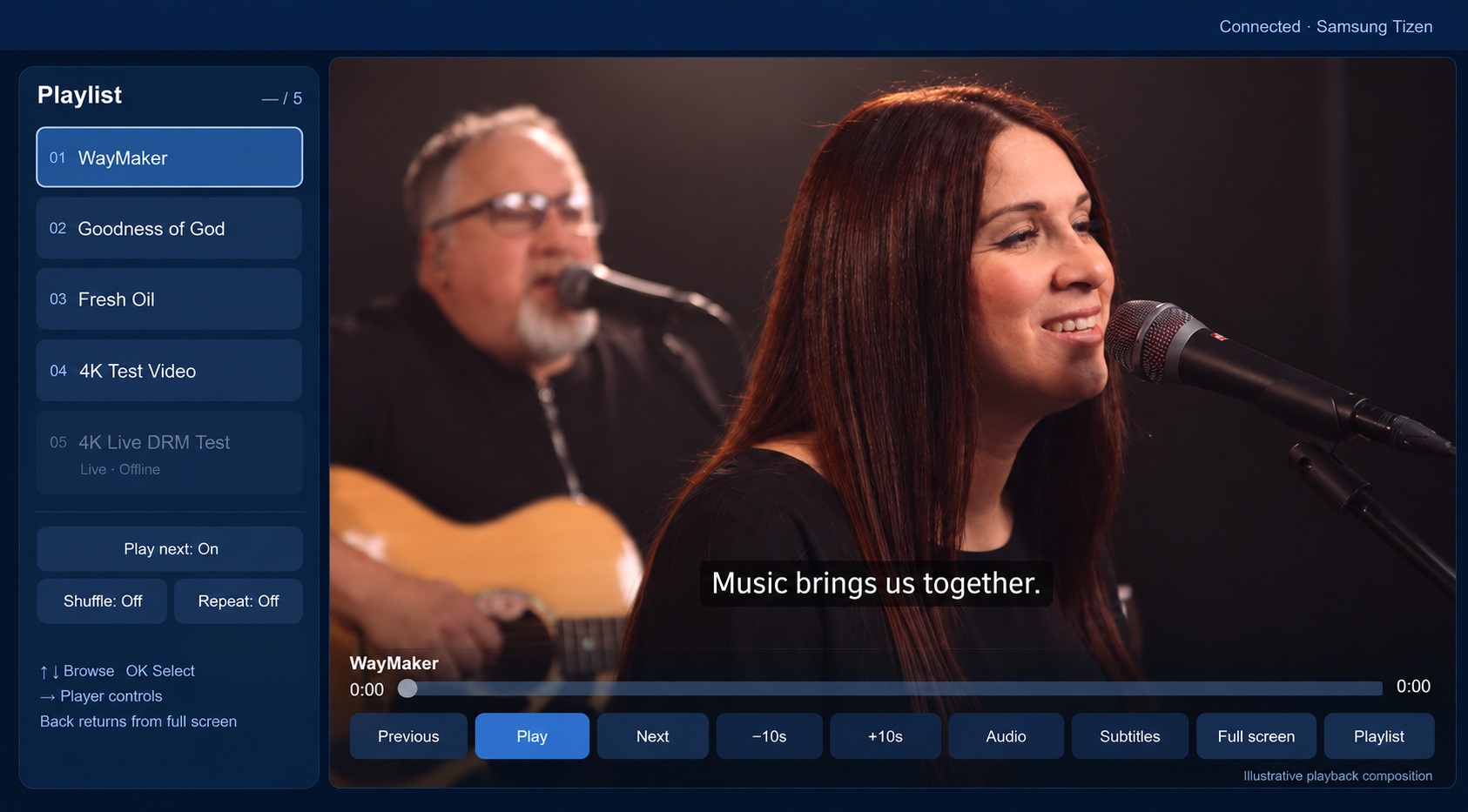
- Chọn tiêu đề VOD bằng Lên/Xuống và nhấn OK. Xác nhận video chuyển động và âm thanh nghe được trên vật lý TV.
- Di chuyển sang phải phần điều khiển. Hãy thử tạm dừng/tiếp tục, trước đó/tiếp theo, tua trên thanh thời gian trong khoảng ±10 giây và dòng thời gian.
- Thử Toàn màn hình. Back đóng menu hoặc thoát khỏi chế độ toàn màn hình trước khi dừng phát lại. Âm lượng vẫn nằm trên điều khiển từ xa thông thường của TV.
- Kiểm tra danh sách phát, phát tiếp theo, phát ngẫu nhiên và lặp lại. Tùy chọn âm thanh/phụ đề tùy thuộc vào track phương tiện thực tế.
- Dừng phát lại trước khi đóng đồng hành. Các mục trực tiếp không có sẵn trừ khi đủ điều kiện riêng biệt; bộ này không bao giờ bắt đầu phát sóng.
Dịch vụ hỗ trợ bản demo chọn phiên bản Full HD mà không giải mã hoặc chuyển mã nội dung. Hãy thêm các track phụ đề tương thích của bạn; bộ công cụ công khai không bao gồm phụ đề bên ngoài.
5. Xây dựng ứng dụng của riêng bạn với SDK#
- Tải xuống Tizen SDK ZIP.Mở Console → Developer Tools → Device SDKs với Professional đang hoạt động hoặc Enterprise tổ chức. Đọc
README.md. - Sử dụng mẫu trình phát hoàn chỉnh.Sao chép
universal-player/vào ứng dụng Web TV của bạn. Chỉnh sửaruntime-config.js: đặt điểm cuối phiên phát lại HTTPS của bạn, đã xuất bản Content IDs và lệnh gọi lại xác thực người xem. - Kết nối backend.Xác thực người xem, kiểm tra quyền rồi trả về Universal Playback Session Contract v1 với
widevine,dash,vod,streaming. Hỗ trợ endpoint giải phóng phiên. Client chấp nhận xác thực bằng token trực tiếp hoặc token proxy. - Định cấu hình quyền truy cập mạng.Thêm nguồn gốc chương trình phụ trợ, phương tiện và giấy phép thực tế của bạn vào
config.xml. Định cấu hình dịch vụ' CORS cho nguồn gốc TV nếu cần. Giữ Site Key và Access Key độc quyền ở backend. - Ký bằng danh tính của bạn.Dùng cùng các bước build/đóng gói Tizen với
universal-playerlàm đầu vào,DRMXPlayer.wgtlàm tên tệp đầu ra vàDrmXSdk001.Playerlàm ID ứng dụng mẫu. Dùng mã định danh riêng trước khi phân phối ứng dụng.
Theo mặc định, mẫu yêu cầu tối đa 1080p. Phần phụ trợ của bạn phải trả về một codec và bộ biểu diễn mà TV có thể giải mã. Yêu cầu khả năng này không viết lại bảng kê khai UHD; giấy phép và chính sách DRM vẫn có hiệu lực.
Giữ giao diện của riêng bạn
Tải Samsung's $WEBAPIS/webapis/webapis.js, sau đó tải drmx-tizen.js. Bao gồm đối tượng video gốc và giữ lại một trình phát cho màn hình:
<object id="video" type="application/avplayer"></object>
<script src="$WEBAPIS/webapis/webapis.js"></script>
<script src="drmx-tizen.js"></script>
const player = new DrmXTizen.Player({
endpoint: 'https://app.example.com/api/playback-session',
authentication: () => ({Authorization: 'Bearer ' + viewerToken}),
maximumHeight: 1080,
rect: {x:0, y:0, width:1920, height:1080},
onState: state => { statusLabel.textContent = state; }
});
await player.play('YOUR_PUBLISHED_CONTENT_ID');
player.pause();
player.resume();
player.seekTo(30000);
await player.stop();
await player.dispose(); // final dismissal or sign outSDK giữ nguyên byte challenge Widevine và giấy phép. Nó hủy tác vụ phát cũ và giải phóng phiên khi dừng, thay thế hoặc hủy trình phát. Với WebVTT bên ngoài, cung cấp metadata track trong catalog và callback subtitle(contentId, trackId) được cấp quyền tới UniversalPlayerService. Xem AVPlay API của Samsung để biết giới hạn media và track theo nền tảng.
Khắc phục sự cố#
| Triệu chứng | Kiểm tra |
|---|---|
| Không cài đặt được WGT | Sử dụng chứng chỉ Samsung TV với TV's DUID này, bật Developer Mode và cho phép cài đặt. Công chúng WGT chưa được ký tên. |
| Ứng dụng cho biết cấu hình/kết nối không thành công | Duy trì hoạt động của thiết bị đầu cuối đồng hành; kiểm tra cả LAN IP, quyền truy cập tường lửa mạng riêng và thời hạn bốn giờ. Xây dựng lại sau khi cấu hình lại. |
| Màn hình đen hoặc giật hình trên TV | Kiểm tra âm thanh/tiến trình, codec, độ phân giải được hỗ trợ và chính sách HDCP. Sử dụng thang FHD trên Samsung Smart TV. Ảnh chụp màn hình màu đen không giống với màn hình TV đen. |
| Không có phụ đề | Cung cấp track tương thích. AVPlay không hỗ trợ chuyển tùy ý giữa các track DASH TEXT; mẫu này hỗ trợ WebVTT bên ngoài có cấp quyền. |
| Hoạt động trong bản xem trước trên máy tính để bàn nhưng không hoạt động TV | Bản xem trước UI trong trình duyệt không chạy AVPlay hoặc Widevine. Hãy kiểm tra trên TV thật và ghi lại mã lỗi đã loại bỏ thông tin nhạy cảm. |
Phát hành ứng dụng qua quy trình chứng nhận và gửi duyệt của Samsung.