 DRM-X 6.0
Set up Apple FairPlay credentials
Request Apple FairPlay Streaming approval, download your credential bundle, register it in DRM-X 6.0, and verify playback in Safari.
1. Request Apple deployment approval#
If your organization owns or licenses the streaming content, ask the Account Holder of your Apple Developer Program membership to request FairPlay Streaming deployment approval. Sign in with the Apple Developer team that operates the streaming service. Wait for Apple to approve credential creation for that team.
2. Prepare the private keys and CSRs#
Follow the credential creation guide in Apple’s FairPlay Streaming Server SDK. On a trusted computer, generate an encrypted 2048-bit RSA private key and its certificate signing request (CSR). The following OpenSSL command prompts for a passphrase.
openssl req -new -newkey rsa:2048 -sha256 -keyout fairplay-2048.pem -out fairplay-2048.csrIf Apple offers a new 1024-bit certificate, generate a separate key and CSR using the command below. If Apple offers Use previous certificate, retrieve the original 1024-bit private key that matches that certificate.
openssl req -new -newkey rsa:1024 -sha256 -keyout fairplay-1024.pem -out fairplay-1024.csrSend the CSRs to Apple. Keep the private keys in protected storage. The DRM-X upload form has one Private-key password field, so prepare encrypted upload copies of both keys with the same strong passphrase.
3. Create and download the Apple bundle#
- In Apple Developer → Certificates, Identifiers & Profiles → Certificates, use the add button. Choose FairPlay Streaming Certificate and select Continue.
- Select the FairPlay Streaming SDK version offered by Apple. The screenshots show SDK 27.x. DRM-X 6.0 also supports existing Apple-issued SDK 26 bundles.


- Upload
fairplay-2048.csrin the 2048-bit section. In the 1024-bit section, upload the 1024-bit CSR if Apple offers that option, or select the previous certificate whose private key you retained. - Select Continue to issue the bundle. On Download your Provisioning Package, select Download. Extract the ZIP in a protected folder and keep the two files from the same package together.
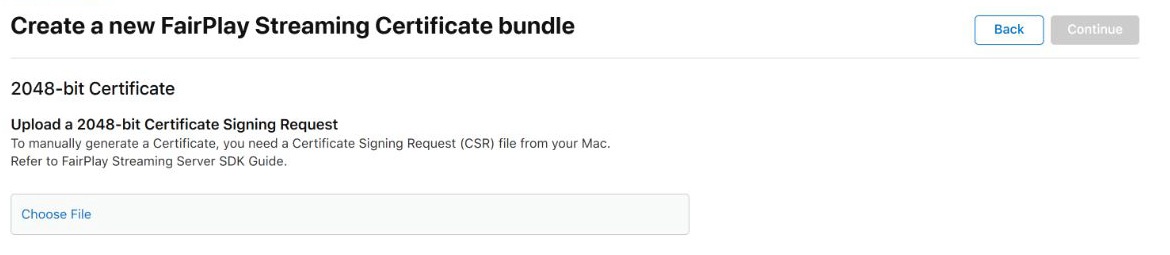


4. Upload the four files to DRM-X 6.0#
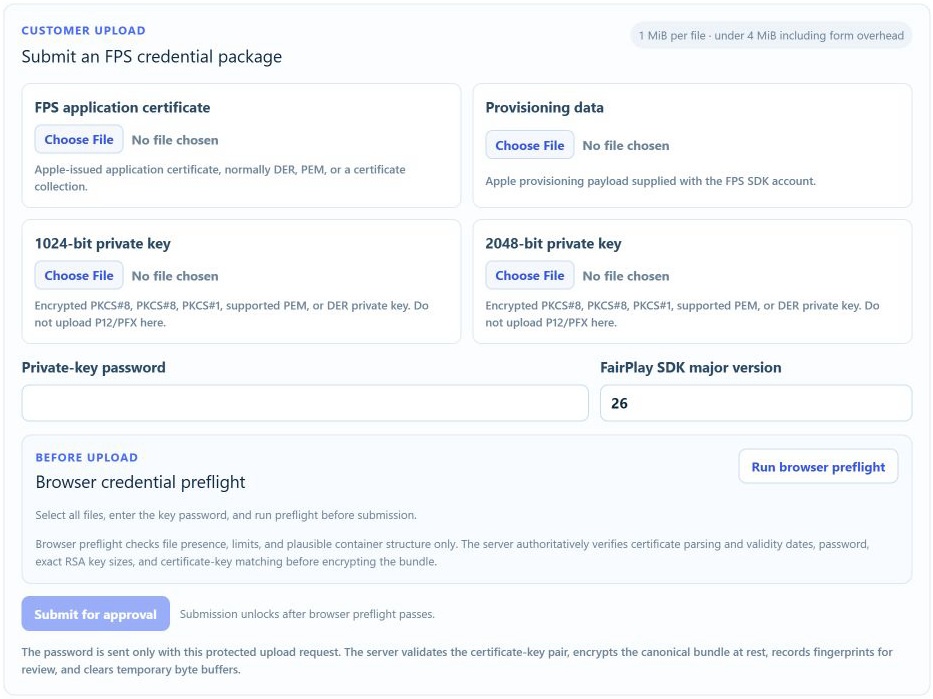
Sign in to DRM-X Console → Integrations. Select the project and environment where you will deliver FairPlay licenses. In Application credentials, open Submit an FPS credential package and choose the four files individually.
| Console field | File to select |
|---|---|
| FPS application certificate | fps_certificate.bin from the Apple ZIP |
| Provisioning data | provisioning_data.bin from the same Apple ZIP |
| 1024-bit private key | The original 1024-bit RSA private key that matches the certificate selected in Apple Developer. |
| 2048-bit private key | The 2048-bit RSA private key used to create the CSR uploaded to Apple. |
Enter the passphrase in Private-key password. Set FairPlay SDK major version to 27 for an SDK 27 bundle or 26 for an SDK 26 bundle. Select Run browser preflight, correct flagged files, then select Submit for approval. DRM-X validates the bundle and lists the submission in Submission history.
5. Confirm activation and test in Safari#
Check Submission history for the review status. After approval, ask Haihaisoft Technical Support to confirm that the credential deployment is active and synchronized with the FairPlay provider in the intended environment.
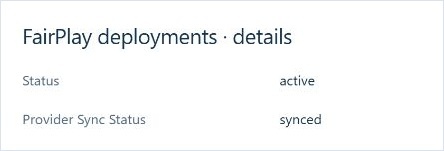
In that environment, publish an HLS/CBCS package for a short video you can use for testing. In Package History, select Test playback. In Safari on an Apple device, verify that the picture and playhead advance and that playback diagnostics report FairPlay.
Troubleshoot credential setup#
- FairPlay certificate option is missing. Check that Apple approved deployment credentials for the team you selected.
- Key or password validation fails. Check that the 1024-bit key matches the certificate you selected, the 2048-bit key matches your CSR, and the password opens both encrypted keys.
- FairPlay playback fails after approval. Confirm activation and provider synchronization for the package’s environment, then check the HLS/CBCS output in the playback troubleshooting guide.
When contacting support, provide the submission reference, the affected environment and the displayed error. Use the authenticated credential upload form for the private keys, provisioning data and passphrase.