 DRM-X 6.0
Tencent Cloud COS: step by step
Connect Tencent Cloud COS to DRM-X 6.0 with scoped CAM credentials, browser CORS, encrypted-media delivery and upload and playback checks.
The screenshots use Tencent's Chinese console and the configuration tested with DRM-X. Account details are excluded; the connection form uses example identifiers and empty credential fields. Follow the translated captions below each image and replace the examples with your own values.
1. Create the COS bucket#
- Open Tencent Cloud Console → Object Storage (COS). If COS is not enabled, review its billing terms and enable it. A storage-capacity promotion does not automatically cover requests or outbound traffic.
- Choose Create bucket, enter a unique name and select the region nearest your intended origin. Record the full bucket name, including the numeric APPID suffix, and the region code, such as
ap-hongkong. - Select Private read/write. Use Standard storage for active playback. This guide uses one dedicated bucket and a
protected/folder for DRM-encrypted outputs. Keep original media and other private files elsewhere.

2. Create scoped programmatic credentials#
In Access Management (CAM) → Users, create a dedicated sub-user with Programmatic access. Console login is not required. Complete any Tencent security verification, then grant only the bucket and object operations needed by this connection. Save its SecretId and SecretKey securely; enter them only in DRM-X's authenticated Cloud Storage form.

Under CAM → Policies → Create custom policy, use the JSON editor with the policy below. Attach that custom policy to the dedicated sub-user. The tested COS resource syntax is qcs::cos:REGION:uid/APPID:BUCKET-APPID/...; use uid/, not appid/, and the bucket owner's numeric APPID.
Use the following custom CAM policy as a starting point. Replace REGION, APPID and BUCKET-APPID with your values. Bucket listing supports verification and the file browser. Object operations are limited to protected/*; they support upload, metadata checks, copy, rename and deletion. COS authorizes copying through GetObject on the source and PutObject on the destination.
{
  "version": "2.0",
  "statement": [
    {
      "effect": "allow",
      "action": ["cos:GetBucket", "cos:HeadBucket"],
      "resource": ["qcs::cos:REGION:uid/APPID:BUCKET-APPID/*"]
    },
    {
      "effect": "allow",
      "action": ["cos:GetObject", "cos:HeadObject", "cos:PutObject", "cos:DeleteObject"],
      "resource": ["qcs::cos:REGION:uid/APPID:BUCKET-APPID/protected/*"]
    }
  ]
}
Do not use the root account's keys or attach account-wide administrator policies. Keep the key pair out of source code, screenshots, player pages and support logs.
3. Configure browser CORS#
Open the bucket → Security Management → CORS settings → Add rule. Enter one origin or header per line. Use these values for DRM-X Console and the online test players; add your own player website's HTTPS origin when integrating it.
| Field | Value |
|---|---|
| Origin | https://6.drm-x.com |
| Methods | PUT, GET, HEAD |
| Allow-Headers | * |
| Expose-Headers | ETag |
| Max-Age | 600 |
| Vary: Origin | Enabled |
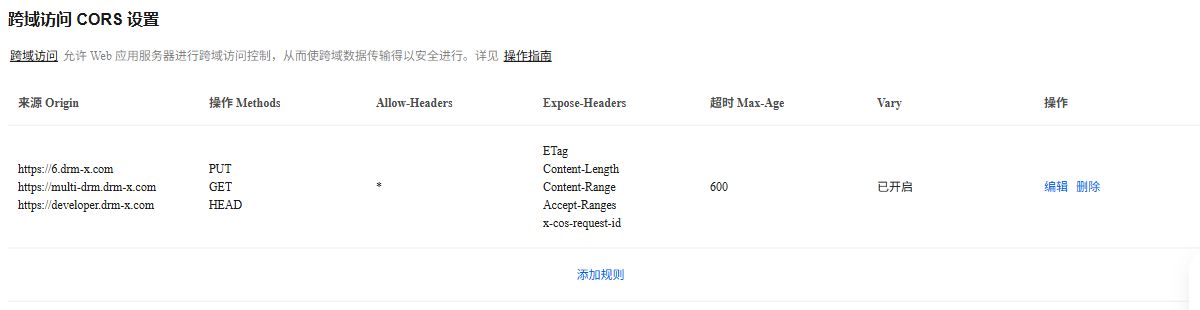
*, the five exposed headers, 600 seconds and Vary enabled. This is the saved rule used in the upload and playback tests.An origin includes the protocol and hostname, with no page path or trailing slash. The wildcard above allows request headers, including signed-upload metadata; it does not allow arbitrary websites. CORS does not grant object access and does not replace the CAM or bucket policy.
4. Allow encrypted-media delivery#
Keep the bucket's base permission private. Under Permissions → Policy settings → Add policy, allow anonymous users to perform GetObject, HeadObject and OptionsObject on protected/* only. Do not grant public upload, deletion or bucket listing. Public users can retrieve encrypted bytes; a valid DRM license is still required to decrypt correctly packaged media.
Choose All users (anonymous access), Specified directory and a custom policy. On the next screen, keep Allow, enter protected/* as the resource path, and add only the three operations shown below. Review the scope before selecting Finish.

GetObject, HeadObject and OptionsObject. The authenticated CAM policy in step 2 separately permits uploads.Use an HTTPS delivery origin that serves this bucket. The default origin has the form https://BUCKET-APPID.cos.REGION.myqcloud.com. Tencent restricts browser preview for newer buckets on its default domain. Check actual manifest and segment responses; for production delivery, configure your own HTTPS origin/CDN domain and certificate according to Tencent's domain guidance.
When using a CDN, preserve the object path and configure its CORS responses for the same player origins. Forward or correctly handle Range requests. A DNS CNAME alone does not configure an HTTPS certificate or origin access.
5. Connect the bucket in DRM-X#
Open Cloud Storage → Connect storage. Select Tencent Cloud COS and enter the fields below.
| DRM-X field | Example or source |
|---|---|
| Display name | Tencent COS |
| Bucket name | BUCKET-APPID |
| Region | ap-hongkong |
| Protected-content base path | protected |
| Public URL prefix | https://media.example.com/protected |
SecretId / SecretKey | The dedicated CAM sub-user's key pair |
Include protected exactly once in both the object key and the delivery URL. For example, object protected/video/dash-cenc/manifest.mpd must be available at https://media.example.com/protected/video/dash-cenc/manifest.mpd. The public URL field is a stable delivery prefix, not a temporary signed URL or the region-level S3 API endpoint.
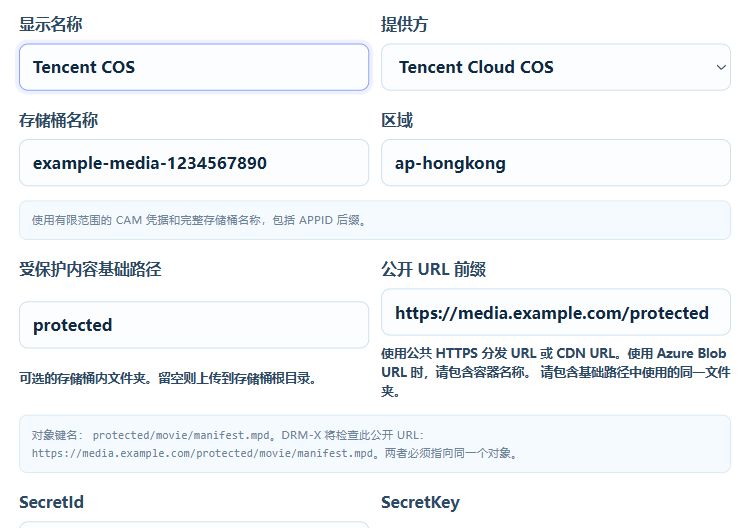
ap-hongkong and protected. Replace https://media.example.com/protected with your actual HTTPS delivery prefix.Choose Set as CLI default upload destination to use COS for new Packager jobs, then select Save and verify. Existing packages retain their original destination. An active, verified customer-owned cloud connection can be used even when 1AICLOUD has been cancelled.
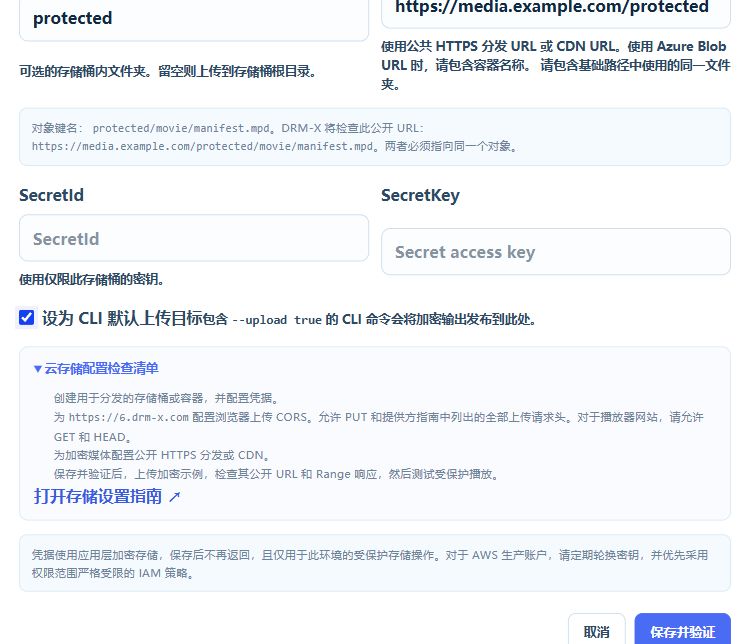
SecretId and SecretKey here; they are deliberately blank in this screenshot. Check 设为 CLI 默认上传目标 (Set as CLI default upload destination), then choose 保存并验证 (Save and verify).6. Test upload and protected playback#
- Confirm the connection is verified. This checks server-side bucket listing; it does not prove browser upload permission or public playback.
- In Cloud Storage, upload one small encrypted file from a DRM-X package. Confirm its filename and size appear in both DRM-X and COS. This exercises browser CORS and signed PUT requests.
- Start a new Packager job with cloud upload enabled. Check that its preflight output names Tencent Cloud COS and the intended bucket. Complete encryption, upload and publication.
- Check the published manifest and segments without cloud-console authentication. Expect successful GET/HEAD responses and a
206 Partial Contentresponse to a supported byte-range request. - In DRM-X Developer tools, select the new Content ID and its COS release, issue a temporary DRM License Token, and open Universal Player. Confirm that video and audio actually play, time advances, and seeking works. Do not share the token or report success solely from a downloaded manifest.
For Edge playback that may use PlayReady, select the Packager's maximum-compatibility output so that it includes a dash-cenc manifest alongside cmaf-cbcs. A device can support PlayReady/CENC without supporting PlayReady/CBCS; test the appropriate manifest rather than treating this as a storage failure.
Troubleshooting#
- Verification denied: check the complete bucket name, region, key pair and
GetBucketpermission. Use the bucket's APPID in the resource identifier. - Browser upload fails: check PUT CORS for
https://6.drm-x.com, allowed headers and object write permission. Retry to obtain a fresh signed URL. - Upload succeeds but playback fails: check the delivery prefix, anonymous/CDN read permission, manifest and segment URLs, HTTPS certificate, CORS and Range responses. Then inspect the player's DRM license error separately.
- Packager still names 1AICLOUD: select COS as the default and create a new job. Resuming a previous job uses the destination already recorded for that package.